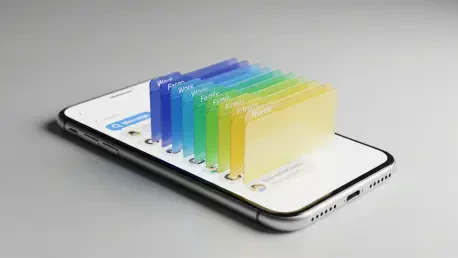

The default messaging application on your Samsung Galaxy device may appear deceptively simple, often being overlooked in favor of more feature-rich third-party alternatives, but beneath its clean interface lies a suite of powerful tools designed to streamline communication, enhance privacy, and bring order to a typically chaotic inbox. Many users only scratch the surface of its capabilities, engaging with basic functions like sending texts and bookmarking important messages without ever discovering the more advanced options that can transform the user experience. From intuitive gestures that instantly adjust text size for better readability to sophisticated organizational features that automatically sort and manage conversations, Samsung Messages offers a level of customization and control that is frequently underestimated. Unlocking these hidden functionalities can significantly improve efficiency, reduce digital clutter, and provide a more personalized and secure messaging environment, proving that the standard app is far more capable than it initially seems.
1. Customize Your Chats for Comfort and Readability
While adjusting the system-wide font size on a smartphone is a common practice for improving accessibility, this global setting can often be a blunt instrument, affecting the layout and appearance of every application, which is not always desirable. Samsung Messages provides a more nuanced solution by allowing users to modify the text size directly within the application itself, independent of the device’s overall settings. This means that text within conversations can be enlarged for comfortable reading without altering the font size in other apps or on the home screen. This granular control is particularly useful for users who only require larger text in specific contexts, such as reading long messages. To use this feature, simply open any conversation thread. Once inside the chat, place two fingers on the screen and perform a pinch-out gesture, as if zooming in on a photograph, to increase the font size. Conversely, a pinch-in gesture will decrease it. The selected zoom level is then automatically saved and applied consistently across all conversations within the app, ensuring a uniform and comfortable viewing experience every time you text. This simple yet effective feature eliminates the need to constantly navigate through system settings, offering a quick and convenient way to tailor the app to your visual preferences.
2. Enhance Your Privacy and Focus
In an increasingly connected world, safeguarding personal information has become a paramount concern for mobile users. A lesser-known aspect of digital communication involves the hidden data attached to media files. Every photograph taken with a smartphone camera contains embedded information known as metadata, or EXIF data, which can include details such as the camera model, settings used, and, most importantly, the precise GPS coordinates of where the photo was taken. While this information can be useful for personal photo organization, it can also pose a significant privacy risk when images are shared with unfamiliar contacts or posted publicly. Samsung Messages allows users to strip this location data from images before sending them, providing an essential layer of protection. This functionality empowers users to share visual moments with confidence, knowing that they are not inadvertently broadcasting their physical location to others. By being mindful of this feature, users can maintain control over their personal data and prevent the unintended disclosure of sensitive information, which is a critical step in responsible digital citizenship and personal security management.
Beyond privacy, maintaining focus in a world of constant notifications is a significant challenge. The default behavior of most messaging apps is to assign a single, generic alert sound to all incoming texts, making it impossible to distinguish between an urgent message from a family member and a promotional offer from a local retailer without physically checking the device. This constant interruption can disrupt workflow and lead to unnecessary distractions. Samsung Messages addresses this by enabling users to set unique notification sounds for specific contacts or conversations. By assigning distinct tones to important individuals, users can immediately identify the sender of a message based on the sound alone. This allows for the prioritization of communications, empowering users to respond promptly to critical alerts while safely ignoring non-essential ones until a more convenient time. This level of auditory filtering is a powerful tool for managing digital distractions, helping users stay focused on the task at hand and reducing the cognitive load associated with constantly monitoring a device for important updates. It provides crucial context before you even glance at the screen, transforming notifications from a source of interruption into a more efficient information delivery system.
3. Bring Order to Inbox Chaos
A modern messaging inbox is rarely limited to personal conversations; it often serves as a repository for a wide array of communications, including one-time passwords, delivery confirmations, appointment reminders, and marketing promotions. This influx of transactional and automated messages can quickly clutter the main conversation list, making it difficult to locate important chats with friends, family, and colleagues. While pinning a few key conversations to the top of the list can provide some relief, it is not a scalable solution for a truly organized inbox. To combat this digital disarray, Samsung Messages includes a powerful organization tool known as conversation categories. This feature allows users to sort their messages into distinct, manageable folders, separating personal communications from transactional or promotional ones. To set this up, tap the three-dot menu icon in the main conversation list and select “Edit categories.” From there, you can move individual chats into their appropriate folders. Once configured, the inbox transforms from a single, endless scroll into a neatly organized, tabbed interface, ensuring that the conversations that matter most are always easy to find and access.
Even with a well-organized inbox, the sheer volume of messages can become overwhelming over time, consuming valuable device storage and slowing down the application’s performance. Manually deleting old or irrelevant messages is a tedious and time-consuming task that is often neglected. To address this, Samsung Messages incorporates an automated cleanup feature that helps maintain a lean and efficient inbox. This function is designed to automatically delete older messages once the total number of texts in the inbox reaches a predefined limit, typically set at 1000 texts for standard messages. Enabling this feature is straightforward: navigate to the app’s Settings, select “More settings,” and then activate the “Auto-delete older messages” option. By automating the deletion process, this tool ensures that the inbox remains tidy and performs optimally without requiring any manual intervention from the user. It is an effective “set it and forget it” solution that works in the background to prevent message overload, keeping the application responsive and ensuring that device storage is not unnecessarily consumed by outdated and unimportant communications.
4. Speed Up Your Chats With Custom Replies
In the course of daily communication, people often find themselves repeatedly typing the same common phrases, such as “On my way,” “Sounds good,” or “I’ll call you back soon.” While these messages are short, the time and effort spent typing them can add up, especially when engaged in rapid back-and-forth conversations. Samsung Messages offers a highly efficient solution to this repetitive task through its Quick Responses feature. This tool allows users to create and save a personalized library of frequently used phrases, which can then be inserted into a conversation with a single tap. This not only accelerates the speed of communication but also reduces the likelihood of typos. Setting up these custom replies is a simple process. First, navigate to the app’s Settings, then proceed to “More settings,” and select “Quick responses.” In this menu, tap the plus icon located at the top of the screen to begin adding your own custom phrases. After saving your desired responses, it is crucial to enable the “Show in conversation” option. This toggle makes your saved phrases readily accessible directly within the chat interface, appearing as convenient, tappable buttons just above the text entry field.
The true utility of the Quick Responses feature was its adaptability to individual communication styles. While the application may come with a set of default responses, its value was fully realized when users took the time to populate it with the phrases they genuinely used in their everyday conversations. This customization transformed it from a generic tool into a personalized efficiency booster tailored to one’s unique lexicon and needs. For instance, a professional might save responses like “Acknowledged, thank you” or “Will review and respond shortly,” while another user might add more informal phrases like “Are you free right now?” or “Just leaving now.” By investing a few minutes to configure these personalized shortcuts, users found they could significantly streamline their messaging workflow. The convenience of having these custom phrases available at their fingertips within any chat eliminated the repetitive nature of daily texting and made the entire communication process feel more fluid and less burdensome. These small conveniences, when combined, elevated the Samsung Messages app from a basic utility to an intelligent communication hub.