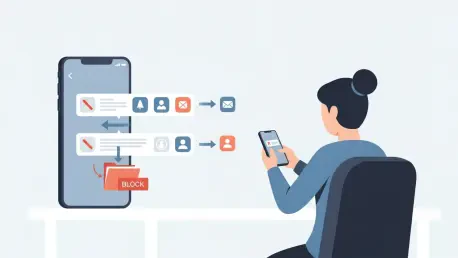

The persistent buzz and flash of a smartphone screen represent a modern paradox, promising connectivity while often delivering a relentless stream of digital noise that fragments attention and disrupts tranquility. This constant influx of alerts, from the trivial to the truly distracting, has become a common source of frustration for users seeking to maintain control over their digital environment. The challenge lies not in silencing all notifications, but in selectively culling the ones that offer no value, a task that often feels more complex than it should be.
This guide provides a comprehensive, step-by-step walkthrough to achieve surgical precision in notification management. It focuses on leveraging a powerful and accessible tool designed to create hyper-specific blocking rules, moving beyond the standard system controls. The ultimate objective is to empower any Android user to systematically identify, target, and permanently eliminate the specific, recurring alerts that compromise their focus and digital peace, transforming the notification bar from a source of annoyance into a hub of genuinely useful information.
Reclaiming Your Digital Peace: An Introduction to Smart Notification Control
The experience of being overwhelmed by a ceaseless barrage of disruptive Android notifications is a nearly universal aspect of modern smartphone ownership. Each chime, buzz, and banner can pull focus away from important tasks, interrupt conversations, and contribute to a general sense of digital fatigue. While many users resign themselves to this reality, a more controlled and peaceful mobile experience is not only possible but also surprisingly straightforward to achieve with the right approach.
To address this challenge, this guide introduces DoNotNotify, a simple, powerful, and free application designed for creating hyper-specific blocking rules. Unlike broad, all-or-nothing solutions, this tool allows for the precise targeting of notifications based on their content, such as keywords in the title or text. It operates on the principle of surgical removal, enabling users to eliminate the digital pests without harming the flow of important, desired information from the same applications.
The goal of the following sections is to provide a clear and actionable path toward mastering this level of control. By following this detailed walkthrough, users will learn how to move from a reactive state of swatting away unwanted alerts to a proactive one of permanently exterminating them. This process will reclaim the notification bar as a space for valuable updates, ensuring that every alert that appears is one that genuinely warrants attention.
The Built-in Toolkit: Understanding Android’s Native Notification Channels
Before deploying specialized tools, it is essential to understand the foundational controls provided by the Android operating system itself. A key feature in this native toolkit is Notification Channels, a system-level framework first introduced in Android 8 (Oreo). This feature was designed to give users more granular control over the alerts they receive by compelling developers to categorize every notification their app can send.
The primary function of Notification Channels is to group an application’s alerts into distinct categories that users can manage independently. For example, a social media app might have separate channels for “Direct Messages,” “New Follower Alerts,” and “Suggested Content.” A user could then choose to receive an audible alert for direct messages, a silent notification for new followers, and completely block suggested content, all without disabling notifications for the entire app. This represents a significant step forward from the simple on-or-off toggle of older Android versions.
However, the effectiveness of Notification Channels is entirely dependent on how an app’s developer chooses to implement them. Some applications offer highly detailed and useful channels, while others may lump many different types of alerts into a single, vague category, offering no real control. Furthermore, a user might want to block a specific type of promotional alert while still receiving other promotions from that same channel. It is in these scenarios, where native controls fall short, that a more advanced, content-based filtering tool becomes an indispensable asset.
Your Step-by-Step Extermination Guide Using DoNotNotify
Step 1. Installation and Initial Setup
The first move in this extermination process is to acquire the necessary tool. Navigate to the Google Play Store on your device and search for the DoNotNotify application. The installation is standard and should complete quickly. Once installed, launching the app for the first time will present an immediate and crucial prompt: the request for notification access permission. This is not a standard permission and requires navigating to a specific system settings screen to enable it.
Granting this permission is a mandatory step, as the app’s entire functionality relies on its ability to read the content of incoming notifications in order to compare them against the blocking rules you will create. Without this access, DoNotNotify cannot see or act upon any alerts. The app will provide a direct shortcut to the relevant settings page, where you will need to find DoNotNotify in the list and toggle its access to “On.”
A Quick Note on App Privacy
Understandably, granting an application the ability to read all of your notifications can raise privacy concerns. It is important to address these directly. The permission required by DoNotNotify is indeed powerful, but its use is strictly limited to the core function of filtering alerts. The app has been designed with privacy as a foundational principle.
Critically, the DoNotNotify application does not request internet access permission. This architectural choice makes it technically impossible for the app to send any of your notification data off your device. All processing, including the comparison of incoming alerts to your defined rules, happens entirely locally. The developer explicitly states that no data is ever collected, stored remotely, or shared, ensuring that your personal and potentially sensitive notification content remains private.
Step 2. Building Your Notification History
After completing the initial setup and granting the necessary permission, the most effective next step is to simply wait. While it may seem counterintuitive to pause, this waiting period is a critical phase for gathering the necessary intelligence to build effective blocking rules. The application needs time to observe and log the typical flow of notifications that you receive throughout a day or even a few days.
As you use your phone normally, DoNotNotify works silently in the background, compiling a detailed log of every notification that appears. This log, accessible within the app’s “History” tab, becomes your primary resource for identifying targets. Without a populated history, creating a rule would be a matter of guesswork, requiring you to manually type out the exact title or text of an alert you remember.
By allowing the app to accumulate this data over several hours or days, you ensure that you have a rich and accurate sample of alerts to work with. This includes the exact phrasing, capitalization, and structure of the annoying notifications you wish to block. This patient approach is the foundation of a precise and successful extermination campaign, transforming abstract annoyances into concrete data points that can be acted upon.
Step 3. Creating Your First Blocking Rule
With a sufficient notification history built up, you are now ready to create your first blocking rule. Open DoNotNotify and navigate to the “History” tab, which will display a list of recent notifications, typically grouped by the app that sent them. Scroll through this list to locate an example of an unwanted alert that you wish to eliminate from your digital life.
Once you have identified a target, tap on that specific notification entry in the list. This action will open a new screen prompting you to “Create Rule.” Here, you will see fields pre-populated with the full content of the selected notification, primarily the “Title Filter” and the “Text Filter.” These two fields are the core components of the blocking logic, allowing you to create rules based on the words or phrases contained within an alert’s title or its main body text.
Tip: Generalize Your Filters for Broader Impact
By default, when you create a rule from a history item, the filter fields will contain the exact and complete text of that specific notification. For instance, an alert might say, “Flash Sale: The X-12 Widget is 50% off for the next 3 hours!” While a rule with this exact text would block that specific message, it would fail to block a similar one that says, “Flash Sale: The Z-34 Gadget is 40% off!”
To create a more powerful and future-proof rule, it is best to generalize the filter. In the example above, you could edit the “Text Filter” to contain only the words “Flash Sale.” This would effectively block any notification from that app containing that phrase, regardless of the specific product or discount mentioned. The key is to identify the recurring, common element in the unwanted notifications and use that as your filter, stripping away the specific details that change from one alert to the next.
Step 4. Reviewing and Understanding the Consequences
After a rule is saved, any incoming notification that matches its criteria will be silently intercepted and dismissed without ever alerting you. To verify that your rules are working as intended and to see what has been blocked, you can navigate to the “Blocked” tab within the DoNotNotify app. This section serves as a log of all silenced alerts, providing transparency and an opportunity to review the impact of your filters.
It is crucial to understand the power this tool grants you and the potential consequences of its misuse. DoNotNotify executes your rules literally and without judgment. If a rule is defined, any notification meeting that condition will be blocked, regardless of its potential importance. This makes a thoughtful and precise approach to rule creation not just a recommendation, but a necessity for avoiding unintended side effects.
Warning: Wield Your Power Wisely
The risk of creating overly broad rules cannot be overstated. An imprecise filter can easily lead to missed information that is critical. For example, imagine creating a rule to block any notification containing the common word “the.” While seemingly harmless, this would inadvertently silence a vast number of potentially vital alerts, such as a bank notification stating, “A charge from The Corner Store has been approved,” or a message from a family member asking, “Are you going to the party?”
This example illustrates the importance of specificity. Before saving any rule, take a moment to consider its potential collateral damage. Think about whether the keyword or phrase you have chosen could legitimately appear in an important notification from the same app or even other apps, if you create a global rule. Always start with the most specific filter possible and only broaden it if necessary, periodically checking the “Blocked” tab to ensure you are not missing anything essential.
Your Quick Extermination Checklist
- Install: Begin by downloading the DoNotNotify app from the Play Store and proceeding through the initial launch, where you will be prompted to grant the essential notification access permission in your device’s system settings.
- Wait: After installation, allow the application to run in the background for a period of a few hours to a couple of days. This gives it the necessary time to passively observe and compile a comprehensive history of the alerts you typically receive.
- Target: Open the app and go to the “History” tab. Scour the list for a specific example of an annoying notification you want to eliminate, then tap on it and select the “Create Rule” option to begin the filtering process.
- Refine: In the rule creation screen, carefully edit the pre-populated “Title” or “Text” filter fields. Remove specific, variable details and focus on the core recurring keywords to create a rule that is specific enough to block the pest but not so broad that it silences important information.
- Confirm: Once you are confident in your refined filter, save the rule. You can now enjoy a quieter notification experience, remembering to periodically visit the “Blocked” tab to review what the app has intercepted and ensure your rules are functioning as expected.
The Broader Pest-Control Toolkit: DoNotNotify vs. Other Power-Tools
In the landscape of Android customization, DoNotNotify carves out a specific and valuable niche. It is best positioned as a brilliantly simple and highly accessible tool, designed to execute one function with flawless precision: targeted, keyword-based notification filtering. Its key strengths are its zero-cost barrier to entry and its straightforward, easy-to-grasp interface, making it the perfect solution for users who have a few specific notification annoyances they want to eliminate without a steep learning curve or financial commitment.
In contrast, the broader ecosystem includes more complex, often paid applications like BuzzKill. Such power-tools offer a much wider array of features that go far beyond simple blocking. They can automate actions like snoozing notifications until a later time, automatically dismissing them after a set period, creating custom vibration patterns, or even triggering a different action based on the content of an alert. These apps serve a different purpose, targeting users who want to build a deeply automated and intricate notification management system.
Ultimately, the choice between these tools is not necessarily an exclusive one. DoNotNotify stands as an essential resource that can be used effectively on its own for its elegant simplicity and no-cost availability. For users with more demanding needs, it can also serve as a foundational component of a more comprehensive notification strategy, working alongside other power-tools to handle specific blocking tasks while the more complex apps manage broader automation routines.
Final Thoughts: Achieve a Permanently Peaceful Notification Bar
The exercise of reclaiming control over a device’s notification system revealed the significant impact that precise, content-based filtering could have. The core benefit of a tool like DoNotNotify was its ability to grant users surgical control over alerts with minimal effort, transforming the process from a complex technical challenge into an accessible and straightforward task. By focusing on keywords and simple rules, it provided a direct path to a more serene and focused digital experience.
By following the steps outlined, users successfully embraced this new level of management. They learned to identify their unique notification annoyances, create targeted rules, and refine them for maximum effect without causing collateral damage to their flow of important information. This process fostered a proactive mindset toward digital wellness, moving beyond the default settings to build a truly personalized mobile environment. The result was a quieter, more intentional, and ultimately more productive relationship with their Android device, where the notification bar once again served its intended purpose as a source of valuable information, not constant distraction.