
The glow of a mobile screen in a pitch-black room can feel like a physical assault on the eyes, yet standard software solutions often fail to address this discomfort with any real precision. For years, the Android operating system has offered a dark mode designed to mitigate eye strain and save battery life, but its implementation remains frustratingly rigid. Most users are forced to choose between a manual toggle that requires constant attention or a schedule that relies on the movement of the sun rather than the actual lighting conditions of their immediate environment. This disconnect means that even in 2026, a user sitting in a dimly lit office at midday might still be blinded by a stark white interface simply because the clock has not yet reached a predetermined evening hour. The system lacks the contextual awareness to understand that the external time of day is often irrelevant to the user’s specific visual needs and physical surroundings.
Modern smartphones are equipped with sophisticated ambient light sensors that already manage screen brightness with impressive accuracy, yet this data is rarely utilized to govern the system’s aesthetic theme. While a phone can dim its backlight in a dark room, it often continues to display high-contrast white backgrounds that remain jarring despite the lower brightness level. This gap in functionality highlights a missed opportunity for a truly seamless user experience where the interface adapts fluidly to the world around it. Instead of a smart tool, dark mode functions as a blunt instrument, leaving a void that third-party developers are now beginning to fill. By bridging the gap between sensor data and system settings, a new wave of utility applications is finally providing the level of automation that enthusiasts have been requesting for years. The goal is to move beyond static schedules and toward a dynamic, responsive interface that feels intuitive and natural.
1. Obtain the Application: The First Step Toward Automation
Finding a solution to the limitations of native software often leads users to the expansive ecosystem of the Google Play Store, where specific utilities target niche functionality gaps. The search for a more responsive interface begins with a specialized, open-source tool known as Adaptive Theme. Unlike many utility apps that are cluttered with intrusive advertisements or hidden subscription models, this particular application is designed with a singular, clean purpose: to link the device’s ambient light sensor directly to the system-level dark mode toggle. By downloading this free software, users gain access to a level of customization that remains absent from the standard Android settings menu. The installation process is straightforward and follows the typical procedure for any mobile application, serving as the foundational layer for the more technical configurations that will follow in the subsequent setup phases.
The appeal of using an open-source tool like Adaptive Theme extends beyond just its price point; it offers a level of transparency that is vital when granting an app control over system behaviors. Because the source code is publicly accessible, the tech community can verify that the application operates without malicious intent or unnecessary data collection. This is particularly important for a utility that will eventually require elevated permissions to function correctly in the background. Once the app is successfully installed on the device, it acts as a central hub for managing the transition between light and dark themes based on real-time environmental data. It represents a shift away from the “set it and forget it” mentality of time-based scheduling, moving instead toward a proactive system that monitors the world through the hardware’s existing sensors to ensure the display is always optimized for the user’s current visibility.
2. Unlock the Phone’s Hidden Settings: Entering Developer Mode
To grant a third-party application the authority to change system-level themes, one must first navigate into the deeper, often hidden layers of the Android operating system. This journey begins within the system settings menu, specifically under the “About Phone” section, where the “Build number” entry is located. While this text appears to be a mere informational label, it serves as a secret gateway for those who know the correct interaction pattern. Tapping this specific line seven times in rapid succession triggers a hidden sequence that eventually prompts the user for their secure PIN or pattern. Once authenticated, a notification appears confirming that the user is now recognized as a developer, effectively unlocking a suite of advanced configuration tools that are typically hidden from the general public to prevent accidental misconfiguration of the device’s core functions.
This newly revealed “Developer options” menu is a powerful environment that contains dozens of experimental and technical toggles intended for software engineering and troubleshooting. For the average user, entering this space can feel somewhat daunting, as it exposes the raw mechanics of the Android platform that are usually obscured by polished user interfaces. However, accessing these settings is a strictly necessary step for enabling the advanced automation required by Adaptive Theme. It allows the device to communicate more openly with specialized software and external hardware, providing the bridge needed to bypass standard user-interface restrictions. While the menu is extensive, the objective remains focused on a single specific goal: preparing the groundwork for the application to exercise control over the visual theme without requiring manual intervention from the user every time the lighting changes.
3. Activate the Debugging Feature: Enabling System Communication
With the developer menu now accessible, the next logical progression involves locating and activating a specific protocol known as USB Debugging. This feature is designed to allow a smartphone to communicate with a computer or another external device at a high level of authority, facilitating the transfer of commands that are normally blocked for security reasons. Within the Adaptive Theme application, a convenient shortcut usually exists to transport the user directly to the correct section of the developer menu. Once there, the user must scroll through the list or use the search function to find the “USB Debugging” toggle. Switching this on triggers a warning dialog from the system, explaining the potential security risks associated with allowing external commands, which the user must acknowledge and accept to proceed with the intelligent dark mode configuration.
The activation of USB Debugging is a pivotal moment in the setup process because it changes the fundamental way the phone interacts with third-party instructions. In its standard state, Android treats theme changes as a user-level preference that cannot be easily automated by outside software to prevent apps from flickering the screen or causing visual instability. By enabling debugging, the user is essentially telling the operating system to trust a more direct form of input, which is exactly what the Adaptive Theme app needs to function as intended. This step does not immediately grant the app full control, but it creates the necessary communication channel through which the required permissions will be delivered. It is a controlled opening of the system’s defenses, allowing for a specialized utility to perform a task that enhances the overall user experience while maintaining the structural integrity of the software.
4. Authenticate Using a Secondary Device: Granting Elevated Permissions
Because modern security architectures are designed to be extremely robust, simply toggling a setting on the phone is often insufficient to grant a third-party app the right to modify system themes. To finalize this process, a secondary device, such as a laptop or another Android smartphone, must be used to send a “handshake” command that confirms the user’s intent. This is accomplished by connecting the two devices using a standard USB-C cable, which establishes a physical link for the secure transmission of data. Once connected, the user follows a specific URL provided by the Adaptive Theme app on the secondary device’s web browser. This interface acts as a remote console, allowing the user to select their phone from a list of connected hardware and initiate the final stage of the permission grant, effectively “signing off” on the app’s authority to act on behalf of the user.
This multi-device authentication might seem like an overly complex hurdle, but it serves as a critical safeguard against unauthorized software gaining control of sensitive system settings. It ensures that the person requesting the change has physical access to the hardware and the knowledge to navigate advanced settings, which prevents malicious apps from silently hijacking the device’s theme or other core functions. On the secondary device, clicking “Start setup” and “Select device” completes the digital handshake, while the phone will likely display a prompt asking to “Allow USB debugging” from that specific connection. Confirming this request on both screens finalizes the link. It is important to note that this is a one-time requirement; once the permission is granted, the app is fully authorized to monitor the light sensor and adjust the dark mode settings autonomously without needing the cable or the second device ever again.
5. Calibrate the Light Sensitivity: Refining the User Experience
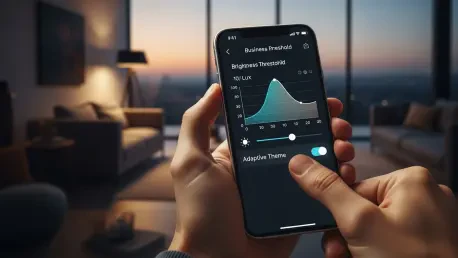
Now that the technical infrastructure is firmly in place, the final phase of the process involves fine-tuning the software to match the user’s personal preferences and visual comfort levels. Within the Adaptive Theme interface, a “Brightness Threshold” slider serves as the primary control for determining exactly how dark an environment must be before the system switches themes. This calibration is essential because “darkness” is subjective; what feels like a dim room to one person might seem perfectly adequate for a light theme to another. By adjusting this slider, users can set the specific lux level—the measurement of light intensity—that triggers the transition. Moving the slider toward the lower end of the scale ensures that dark mode only activates in near-total darkness, while a higher setting allows the theme to shift more readily in moderately shadowed environments.
The true intelligence of this setup lies in its reactive nature, as the app performs a light check every time the screen is woken from its sleep state. This approach prevents the theme from flickering or changing abruptly while the user is actively reading or typing, which would be incredibly distracting. Instead, the transition feels deliberate and steady, occurring only when the device is first engaged. If the lighting conditions change significantly during a session, a simple cycle of the power button—locking and unlocking the device—will prompt the app to re-evaluate the ambient light and apply the appropriate theme. This level of granular control transforms dark mode from a static, scheduled event into a living part of the device’s interface. It empowers the user to dictate exactly how their phone should behave, ensuring that the display is always a perfect reflection of their physical world.
Future Considerations: Maintaining a Responsive Mobile Ecosystem
The implementation of a sensor-based dark mode represents a significant leap forward in mobile ergonomics, providing a solution that feels both modern and necessary. Once configured, the system operates with remarkable reliability, requiring no further intervention from the user as they move between different environments throughout the day. However, users should remain aware that as Android receives system updates, the developer settings or debugging permissions might occasionally reset. Periodically checking the app’s status ensures that the automation remains active and that the device continues to provide the most comfortable viewing experience possible. This proactive approach to software customization allows individuals to bypass the “one size fits all” philosophy that often dominates major platform development, favoring instead a personalized toolset that respects the user’s specific environmental needs.
Should a user eventually decide that they prefer the standard, non-automated behavior of the Android operating system, reverting the changes is a simple and non-destructive process. Uninstalling the Adaptive Theme application immediately severs the connection between the light sensor and the theme toggle, and the system-level permissions granted during setup are automatically revoked. For those concerned about long-term system stability, it is also advisable to return to the developer menu and disable USB Debugging if no other advanced tools are being used. This ensures the device returns to its factory-default security posture while leaving the user with the knowledge of how to reclaim control over their interface in the future. The transition to a more intelligent mobile experience is ultimately about choice, giving users the power to decide how their technology should adapt to the nuances of their daily lives and physical surroundings.