
Relentless banners stack up, badges flare in red, and the lock screen fills with pings that hijack attention before the mind decides whether the moment is right to react or reflect, and that constant tug raises a hard question many users skip past: who is in charge here—the apps shouting for time, or the person who owns the phone. Daily life moves through layers of messaging threads, payment alerts, smart‑home nudges, ride‑share prompts, and system recommendations, and when everything interrupts, nothing truly informs. A smarter approach treats notifications as a priority pipeline, where only a few must break through instantly while the rest wait politely until they are invited. Android’s built‑in tools make this not just possible but practical, and the difference shows up in fewer missed tasks, calmer focus, and faster decisions when something actually needs immediate action. What follows shows how to switch from being pushed around to pulling what matters on demand—while preserving a complete record and an effortless way to resurface anything at the right time.
1: Shift Your Mindset: Pull What You Need, Don’t Let Everything Push
The push‑versus‑pull shift starts with clarity about urgency. Urgent means an event that truly cannot wait—critical calendars like “Next Event,” direct messages from specific contacts, ride arrival notices, two‑factor prompts, and selected banking or security alerts. Those deserve push access because the cost of delay is high. Everything else is a pull candidate: newsletters, group chats that rarely require action, shopping updates, social mentions, news headlines, brand promotions, and low‑priority system tips. Rethinking this boundary reduces noise and reframes the phone as an assistant that highlights only what matters now. Android helps by letting users mark conversations as Priority, set per‑app alert types, and quiet categories like marketing while preserving transactional alerts. The gain is immediate: fewer dings, less screen checking, and a lock screen that highlights only the next correct move.
Turning this mindset into a routine means setting review windows, not just flipping toggles. Pick natural check‑in points: a mid‑morning sweep of messaging and collaboration apps, a quick lunch audit of shopping and deliveries, an afternoon pass through social or community platforms, and an end‑of‑day scan of newsletters or promotions. Those are pull sessions; the rest of the time stays interruption‑light. Android’s notification channels make this sustainable because granular categories—such as “Mentions,” “Reactions,” “Marketing,” “Orders,” or “Security”—can be tuned individually. A chat app might push only direct mentions while muting every “like.” A shopping app can push delivery attempts while relegating sales to silent. Over time, this structure forms a durable triage habit that protects attention without hiding important moments.
2: Turn On Notification Snoozing
Snoozing turns “not now, but soon” into a single tap. Instead of swiping something away and risking forgetfulness, a snoozed alert disappears for a set period and resurfaces when attention is more available. Android surfaces a small alarm‑clock icon on the notification shade once snoozing is enabled; tapping it typically offers 15 or 30 minutes, or one or two hours. Samsung Galaxy devices often include more increments than Google Pixel, which can be helpful for users who plan around meeting blocks or commutes. This feature aligns perfectly with a pull model: let only mission‑critical alerts break through immediately, then snooze the rest for a better window, keeping the lock screen uncluttered while preserving intent. Crucially, a snoozed item returns automatically, so no separate reminder app or to‑do entry is required.
The best use cases are time‑sensitive but not urgent items: a direct message that needs a thoughtful reply after a meeting, a billing notice worth reviewing at lunch, a calendar reminder that is relevant later in the day, or an IT prompt that can wait until at a desk. For knowledge workers, snoozing complements focus modes: set a 60‑minute deep‑work session, snooze in‑between nudges, and let the important messages reappear when the block finishes. For families, snoozing turns a school alert or household request into a punctual nudge at pickup time. It also limits cognitive switching; instead of juggling an interruption and a half‑finished task, the brain stays in one lane. By making “later” specific, snoozing closes the loop that endless swiping often leaves open.
2.1: Enable Snoozing on Samsung Galaxy
Samsung tucks the snooze switch into its advanced notification settings, and activating it takes seconds without changing any app’s core behavior. The exact path is designed to be memorable and clear. Follow these steps as written: 1. Open Settings. 2. Pick Notifications. 3. Tap Advanced settings. 4. Toggle on Show snooze button. After that change, watch for the small clock icon at the bottom right of each notification when expanding or swiping it slightly. Tap the icon to choose a delay. On One UI builds, the picker often includes multiple intervals, which helps tailor snoozes to real schedules—short nudges for quick follow‑ups, longer gaps for end‑of‑day tasks. This granular timing aligns neatly with Samsung’s edge panels and routines for those who lean into automation.
The change is subtle but powerful in daily flow. Consider a Galaxy user moving between Teams calls, a navigation session, and a burst of messages. Turning on Show snooze button preserves context, because a tap sets the right delay without leaving the current app or hunting for another reminder system. Moreover, snoozed notifications behave consistently with Galaxy’s broader controls like Do Not Disturb and Modes; if a Focus mode silences everything for a while, the snoozed alert still reappears at the scheduled time when the mode lifts or the interval ends. This consistency prevents lost notes and reduces friction when switching environments—office, transit, or home. Combined with notification categories, snoozing on Galaxy becomes a precise instrument, not a blunt switch.
2.2: Enable Snoozing on Google Pixel
On Pixel, Android exposes snoozing through a simpler path that mirrors the platform’s streamlined philosophy. Turning it on takes just a moment and applies system‑wide to all app alerts. Follow these steps as written: 1. Open Settings. 2. Choose Notifications. 3. Turn on Allow notification snoozing. With that toggle active, each incoming alert gains the small alarm‑clock control in the shade. Tap it to pick among available intervals—commonly 15 or 30 minutes, or one or two hours. While Pixel may offer fewer increments than Samsung, the defaults match typical planning horizons: a quick pause to finish an email, a half hour to wrap a call, or an hour for a meeting block. Minimalism here reduces decision fatigue, making it more likely that snoozing becomes a natural reflex.
In practice, Pixel owners often pair snoozing with features like Priority Conversations and Adaptive Notifications. Priority ensures select threads appear on the lock screen and can bypass certain silences, while snoozing lets everything else queue up for later. Adaptive Notifications, when enabled, can help de‑emphasize repetitive or lower‑value alerts, which makes the snooze option stand out visually for items worth revisiting. This interplay keeps the Signal or Messages thread from a key contact front and center, while a shipment update or a forum reply waits politely. The design is coherent: it keeps the decision surface small and the outcomes predictable. Over days of use, the lock screen trends cleaner, and the notification shade holds fewer, more relevant items waiting for attention at the right moment.
3: Turn On Notification History
Notification history is the safety net under a quiet phone. Even the most careful user occasionally dismisses something important or clears the shade too quickly. With history enabled, Android keeps a 24‑hour log of notifications so they can be revisited, searched visually, and acted on later. The log captures app, timestamp, and often the preview text that explains what happened. For a pull model, this record changes the risk calculus: silence or snooze freely, knowing that nothing vanishes beyond reach. It also becomes a lightweight audit trail—what pinged in the last day, at which times, and from which services. That visibility helps tune categories more intelligently over time, trimming noisy channels while preserving high‑value signals.
There is one important constraint: notification history does not work retroactively. It begins recording only after the toggle is switched on. That means the sooner it is enabled, the more complete the safety net. The benefit shows up in specific scenarios: a ride‑share driver message cleared by mistake can be retrieved; a banking alert about a hold can be revived and tapped; a calendar invite accepted on a smartwatch but needed on the phone can be reopened from the log. When paired with snoozing, history also lists upcoming snoozed items on supported builds, which consolidates planning in a single place. For users who manage dozens of apps, the history screen evolves into a living ledger of the last day’s signals—calmer than a buzzing phone, but just as capable.
3.1: Enable Notification History (Pixel and Most Android Phones)
For most devices running current Android builds, enabling the log follows a consistent path and finishes in under a minute. Follow these steps as written: 1. Open Settings. 2. Tap Notifications. 3. Select Notification history. 4. Switch it On. Once enabled, a new screen appears that remains empty at first and then starts filling with entries as alerts arrive. Each entry typically shows the app icon and a brief description. Tapping an entry often opens the source app or the relevant conversation, creating a seamless bridge from log to action. The organization is chronological, which makes it straightforward to scan the last hour, the morning burst, or the late‑night trickle.
Activation changes how people treat the shade. Instead of hoarding alerts for fear of losing them, users can clear with confidence, knowing anything important is still retrievable inside 24 hours. This shift lightens cognitive load and reduces clutter accumulation, which in turn makes genuinely timely alerts easier to spot. It also exposes patterns worth adjusting—if the log shows five marketing nudges from the same app in an afternoon, it might be time to mute that specific channel while leaving order updates alone. Over time, the history screen becomes a diagnostic tool as much as a safety net, guiding small tweaks that steadily improve the signal‑to‑noise ratio without sacrificing awareness.
3.2: If You’re on Samsung Galaxy
Samsung places the history toggle where many advanced options live, occasionally one level deeper than on other phones. The flow remains straightforward once the right screen is open. Follow these steps as written: 1. Open Settings. 2. Go to Notifications. 3. Tap Advanced settings (if needed). 4. Open Notification history. 5. Turn it On. After enabling, revisit the screen later in the day to confirm entries appear. One UI’s layout typically shows distinct cards for each app event, and tapping them routes back to the source. For Galaxy owners who also use Modes and Routines, the history panel complements custom profiles by verifying what slipped through and what stayed silent while a mode ran.
With Galaxy’s rich ecosystem, history also helps coordinate mixed devices. If a Galaxy Watch mirrored a notification and it was dismissed from the wrist, the phone’s log can still supply the content and deep link. Likewise, if a Samsung tablet cleared a synced alert, the phone’s history remains the quick way to re‑open it. This cross‑screen resilience reduces the penalty for handling alerts on the go. Combined with Galaxy’s detailed channel controls, the history feature completes a defensible workflow: precise categories decide what may interrupt, snoozing handles deferrals, and history preserves a short‑term archive that supports both action and analysis.
4: Add a Home Screen Shortcut to Notification History
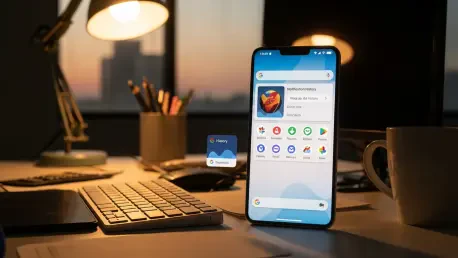
Once history is active, shaving seconds off access matters, especially for frequent check‑ins. A home screen shortcut provides one‑tap entry to the log, bypassing Settings altogether. This is most useful when working through a backlog or verifying that a specific alert arrived while the phone was away. Rather than diving into menus, open the log directly, scroll to the right time block, and tap through. The result is a smoother pull routine: check the archive during a planned interval, act on what still matters, and clear the rest. Because the shortcut appears as a standard widget tile, it can live near productivity apps, calendars, or task managers to reinforce a tidy, review‑oriented layout.
For users who prefer gesture navigation and minimal icon clutter, the shortcut also works tucked into a secondary screen or a folder dedicated to “review later” utilities—files, notes, reading lists, and the notification log side by side. That cluster encourages a single sweep of all pending inputs during downtime. The shortcut does not change what the log captures, but it changes behavior. Small friction keeps people from using features, and removing it keeps the pull system humming. In teams or families, adding the shortcut on shared devices like a household tablet ensures no important service alert—delivery at the door, a camera motion ping, or a utility notice—slips past because someone dismissed it too fast.
4.1: Create the Shortcut
Setting up the tile uses Android’s widget system and takes only a moment on most launchers that support Settings shortcuts. Follow these steps as written: 1. Long‑press an empty spot on your home screen. 2. Tap Widgets. 3. Find Settings. 4. Drag the Notification history widget to your home screen. Once placed, test it: tap the tile to confirm it opens directly to the history panel. If the launcher supports resizing, set a compact footprint so the tile fits naturally into an existing grid. On some devices, the Settings widget category includes multiple shortcuts; ensure the one labeled “Notification history” is selected, not a generic Settings link.
Placement strategy makes a difference. Position the tile near apps that commonly produce time‑sensitive but deferrable alerts—messaging, email, and collaboration tools—or alongside calendar and task apps used for triage. This proximity creates a micro‑workflow: open the history, tap into an alert that needs a reply, then convert it into a calendar event or a to‑do if it cannot be resolved immediately. Over time, those small go‑to paths build muscle memory. The phone becomes less a source of randomness and more a dashboard. That sense of control encourages continued refinement of channels and snooze habits, reinforcing a virtuous cycle where fewer interruptions produce better follow‑through.
5: Pro Tips
Snoozing and history are stronger together than alone. Once history is enabled, many devices surface snoozed items in the log, giving a single pane of glass to see what is scheduled to return. That makes it easy to adjust timing if the day shifts: find the entry, open the source, and resnooze for a new interval. Beyond that, refine app categories aggressively. In messaging apps, allow push only for direct mentions or starred contacts; mute reactions and general chatter. In shopping apps, keep delivery attempts and order status audible; silence promotions. In social apps, allow security notices and account alerts; hush likes and follows. On Samsung, use Modes to swap entire profiles—Work could keep only collaboration and calendar alive, while Personal favors family and transit. On Pixel, lean on Priority Conversations to anchor the few threads that should override most silences.
The strategic layer involves calendar alignment. Tie snooze intervals to real blocks—15 minutes while wrapping a call, 30 minutes before a meeting starts, one hour for deep work, two hours for errands. Combine Do Not Disturb during focus with limited pushes from Priority channels so that emergencies still surface. Consider a weekly audit: open notification history, scroll through the past day’s deluge, and demote any category that appears more than twice without triggering action. Add the home screen shortcut to a “Review” folder and treat it like a checklist during breaks. The approach balanced immediacy with intention and turned the phone into a calm command center rather than a slot machine. Put differently, the technique had shifted control back to the user: push for the truly urgent, pull everything else on purpose, snooze to the right moment, and rely on history as the safety net.