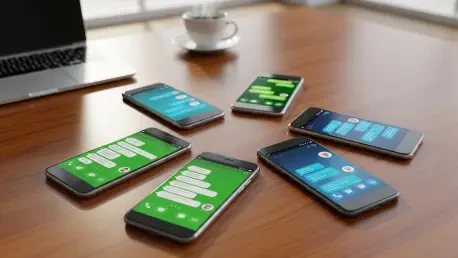

The complexity of modern mobile communication often manifests in the persistent and frustrating failure of group text messages to synchronize correctly across diverse Android devices. This technical friction typically arises from the intricate interplay between legacy SMS protocols, the multimedia-oriented MMS standards, and the newer Rich Communication Services frameworks. When a single participant in a digital conversation experiences delays or receives replies as individual threads, the utility of the entire group chat diminishes, often leading to missed deadlines or social misunderstandings. These issues are frequently exacerbated by the transition between different hardware ecosystems or the influence of proprietary messaging services that do not communicate well with open standards. Identifying the root cause is the first step toward restoration. Most common group texting failures are the result of software conflicts that can be resolved through specific adjustments to the phone settings.
1. Set Google Messages as the Primary App
Group messaging functionality depends heavily on how a specific application manages incoming and outgoing SMS, MMS, and RCS data packets. Utilizing Google Messages as the primary hub for these interactions ensures that the device follows the most current standards for message threading and media handling. To establish this as the default behavior, the user must navigate to the phone’s primary Settings menu and locate the Apps section. Within this menu, the Default apps sub-category provides an option for the SMS app, where Google Messages should be selected from the list. For users on Samsung Galaxy devices, opening the Google Messages app and selecting Set default SMS app followed by the Set as default confirmation will finalize the transition. This change forces the operating system to route all incoming text-based data through a single, optimized engine, which reduces the likelihood of messages being intercepted or misinterpreted by outdated third-party alternative software versions.
2. Enable Group MMS for Threads
One of the most common complaints regarding group chats is when replies from participants arrive as isolated one-on-one messages instead of staying within a single conversation window. This phenomenon usually occurs because the messaging application is configured to use a mass text mode, which broadcasts a single message to multiple recipients as individual SMS texts. To correct this, the user must open Google Messages and tap the profile picture to access the deeper menu options. From there, selecting Messages settings followed by the Advanced tab will reveal the Group messaging settings. Ensuring that the group MMS option is selected as the standard behavior is essential for maintaining thread continuity. This configuration instructs the application to bundle all incoming and outgoing data into a single Multimedia Messaging Service container, which allows the software to recognize and organize the participants as a unified collective, ensuring that everyone sees the same sequence of events.
3. Activate Cellular Data and Multimedia Downloads
Unlike standard SMS, which uses minimal bandwidth, group MMS messages require a robust carrier signal and typically rely on mobile data to function correctly. Even if a device is connected to a high-speed Wi-Fi network, the underlying messaging protocols often demand an active cellular data connection to authenticate and download multimedia content. Users should first verify that their device has a consistent signal and that Airplane mode has not been activated, as these factors will immediately halt all communications. In Google Messages, tapping the profile icon and navigating to Settings and then Advanced allows users to switch on Auto-download MMS. This feature is vital for preventing the manual frustration of tapping individual message bubbles to force a download. For those who travel frequently, enabling the option to Auto-download MMS when roaming is equally important to avoid communication gaps. Ensuring these data permissions are active provides a seamless experience that mimics the fluidity of modern chat apps.
4. Troubleshoot RCS Connection
Rich Communication Services, or RCS, represents the modern standard for Android messaging, but it only functions if every participant in the group chat has the feature enabled and their device maintains a stable connection. To check this, the user should open Google Messages, tap the Profile picture, and select Messages settings followed by RCS chats. Switching on the RCS chats toggle will initiate the registration process, and users can review the connection status directly on this screen. If a “Trouble connecting” message persists, selecting the Details option and submitting feedback can help, though contacting the carrier may be necessary if the feature is disabled at the account level. To prevent messages from being lost during periods of poor connectivity, users should stay within the RCS menu and activate the setting to Automatically resend as text (SMS/MMS). This ensures that if an RCS message fails, the application will immediately attempt to send it via traditional methods.
5. Re-register RCS After a Device Change
When a user transitions to a new device, the RCS registration token tied to their phone number can sometimes remain linked to the previous hardware, causing significant disruptions in group threads. To resolve this conflict on the current phone, the user should open Google Messages, tap their avatar, and navigate through Settings to the RCS chats section. By turning the RCS chat toggle off and then back on, the system is forced to request a fresh registration token from the server, effectively resetting the connection for the new hardware. If the previous Android device is still available, it is highly recommended to manually disable RCS chats on that phone to prevent any background processes from interfering. However, if the old phone is gone, Google provides an official RCS deactivation website. By entering the phone number and the six-digit verification code received via SMS, the user can select Deactivate to sever the old link and allow the new device to claim full control over the RCS stream.
6. Unlink Your Number from iMessage
A common source of broken group threads for former iPhone users is the registration of their phone number within Apple’s iMessage ecosystem. When a number remains linked to iMessage, Apple devices will continue to attempt to send messages through that network rather than switching to the standard protocols required by Android. If the user still has the old iPhone, they should re-insert their SIM card and go to Settings, then Apps, and then Messages to turn off iMessage. Similarly, the FaceTime setting should be disabled as well. For individuals who no longer have the iPhone, the de-registration process must be handled through Apple’s dedicated web portal. By entering the phone number, the user will receive a verification code on their new Android phone, which must be submitted on the website to finalize the removal. Once the number is purged from Apple servers, the infrastructure can correctly identify the user as an Android participant, facilitating the smooth exchange of data across platforms.
7. Update the Software and Messaging App
Even with correct settings, localized software glitches or outdated app versions can cause persistent errors in group texting. A basic initial step is to perform a restart by holding the Power button for thirty seconds and selecting Restart. This clears the system’s temporary memory and restarts background services. Users should also visit the Google Messages page on the Play Store and tap Update to install the latest patches. Beyond the app, the Android operating system must be current to ensure full compatibility. Navigating to Settings, then System and Software updates allows the user to check for pending patches. If the app continues to behave erratically, clearing the cache can remove corrupted temporary files without deleting important message history. This is done by going to Settings, Apps, and Google Messages before tapping Storage and cache to find the Clear cache button. These maintenance steps ensure that both hardware and software are operating at peak efficiency for the current year.
8. Clear Carrier-Side Restrictions
If the app is properly configured but group texts still fail, the issue may reside within the service provider’s network or the physical SIM card. For physical SIMs, turning the phone off and reseating the card can often fix connection issues. Users on Google Fi should ensure the Fi SIM is active in the SIMs menu under Network and internet. On dual-SIM devices, it is imperative to ensure the primary calling SIM is also set for data. Resetting the Access Point Names settings to default can also resolve deep-seated configuration errors. Carrier-specific blocks should also be verified; T-Mobile users should check for text blocks, while Verizon customers should ensure no picture messaging blocks are active in the My Verizon app. AT&T subscribers must remove any data or text blocks as RCS requires these to be disabled. If a device is managed by an employer, the IT administrator may have applied security policies that restrict messaging apps, so contacting them is the only way to modify permissions.
9. Moving Toward Seamless Digital Connectivity
The resolution of Android group texting issues required a methodical evaluation of both local device settings and external network configurations. Users who followed these steps successfully addressed the most common failure points, from protocol mismatches to lingering registration tokens in competing ecosystems. By establishing Google Messages as the default platform and ensuring that both MMS and RCS settings were optimized, the foundation for reliable communication was restored. The process of unlinking numbers from iMessage and verifying carrier-side permissions served to eliminate the invisible barriers that often fragment modern digital conversations. Moving forward, maintaining updated software and periodically checking data connection permissions will remain essential practices for ensuring consistent performance. These proactive measures transformed a frustrating technical obstacle into a manageable aspect of daily digital life, allowing for uninterrupted collaboration and social engagement throughout the year.