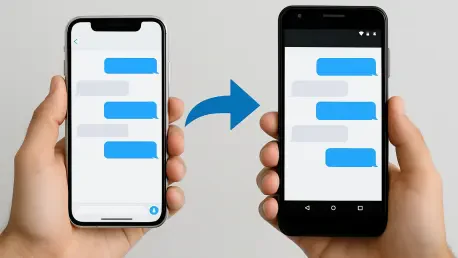

The seamless transition to a new Android device can quickly become frustrating when text messages from friends and family using iPhones mysteriously vanish into the digital ether, leaving you out of the loop. This common issue stems from the complex interplay between Apple’s proprietary iMessage service and the universal SMS/MMS standards that govern cross-platform communication. While it may feel like a technical black hole, the problem is rarely insurmountable. In most cases, a series of logical troubleshooting steps can restore the flow of messages, ensuring that your conversations are no longer one-sided. By methodically ruling out simple configuration errors, addressing lingering iMessage registrations, and verifying network settings, you can bridge the communication gap between the two dominant mobile ecosystems and get your conversations back on track without needing extensive technical support. The key is to approach the problem systematically, starting with the most common and easily resolved culprits before moving on to more complex carrier-level diagnostics.
1. Initial Troubleshooting for Simple Fixes
Before diving into more complex solutions, it is essential to perform a thorough check of fundamental device settings, as these often account for apparent message delivery failures. The first step is to distinguish between non-delivery and a simple notification issue. Open your primary messaging application and navigate to the spam and blocked messages folder to confirm that the sender’s number has not been inadvertently blacklisted. Next, verify basic connectivity by ensuring your device has a stable cellular signal and that Airplane mode is disabled. A simple but effective step is to restart both your Android phone and the sender’s iPhone, as this can clear temporary glitches in the network handshake process. Beyond connectivity, device health plays a crucial role. Check your phone’s storage to ensure it is not full, as insufficient space can prevent new messages from being saved. Similarly, navigate to your device’s date and time settings and confirm that they are set to update automatically from the network. Incorrect timestamps can cause synchronization errors with messaging servers, leading to messages being discarded. Finally, review the permissions for your default SMS application, making sure it has been granted access to SMS, Contacts, and Phone functions to operate correctly.
2. Addressing iMessage Issues on the Sender’s iPhone
A significant portion of cross-platform messaging problems originates not on the Android device but on the sender’s iPhone due to the aggressive nature of iMessage. Apple’s devices are designed to prioritize iMessage for communication with other Apple products. If your phone number is still incorrectly associated with iMessage on Apple’s servers, an iPhone will attempt to send a message via that route instead of falling back to standard SMS. To counteract this, ask the iPhone user to open their device’s settings, navigate to the Messages section, and verify that both the “Send as SMS” and “MMS Messaging” toggles are enabled. This ensures that their phone has a fallback mechanism if an iMessage delivery fails. Furthermore, have them initiate a completely new message thread to your phone number rather than replying to an existing conversation, as old threads may be permanently flagged for iMessage. If they send a message and the bubble appears blue (indicating iMessage), they can long-press that message and manually select the “Send as Text Message” option. As a definitive test, they can temporarily disable iMessage entirely and attempt to send the message again, which forces the communication to travel over the carrier’s SMS network.
3. Steps for Those Who Recently Switched from iPhone
For users who have recently migrated from an iPhone to an Android device, the most persistent offender is a lingering iMessage registration. Even after you stop using an iPhone, your phone number can remain tied to Apple’s iMessage and FaceTime services, causing other iPhones to continue trying to send messages to your defunct Apple ID instead of your new Android phone. The most direct solution is to use Apple’s official “Deregister iMessage” online tool. This web-based process allows you to enter your phone number to have it formally removed from the iMessage system. In addition to this crucial step, it is vital to manually sign out of your Apple ID on any old Apple devices you still possess. On an old iPhone or iPad, go to Settings > Messages > Send & Receive and remove your number. On a Mac computer, this can be done through System Preferences. Apple notes that it can take several hours for this deregistration to fully propagate across its global servers. During this waiting period, it is best to have a few friends with iPhones delete their existing message threads with you and start brand-new ones. This prevents their devices from caching the old iMessage route and forces them to establish a fresh connection via SMS.
4. Troubleshooting on Your Android Device
Once you have addressed potential iMessage conflicts, the focus should shift to the configuration of your Android device. An essential first step is to ensure a single application is designated to handle text messages. In your phone’s main settings, locate the default apps section and set your preferred client (such as Google Messages) as the default for SMS, granting it all necessary permissions. Within that messaging app, look for a setting labeled “Chat Features” or “RCS.” This next-generation messaging protocol can sometimes interfere with basic SMS reception during its negotiation phase. Try toggling this feature off, sending a test message to confirm basic functionality, and then turning it back on. Keeping your software current is also critical; update both Google Messages and the Carrier Services app from the Play Store, then clear the cache for both applications to remove any outdated routing data that might be causing conflicts. If issues persist, you can perform a network settings reset, which restores cellular, Wi-Fi, and APN configurations to their factory defaults. As a final check, physically re-insert your SIM card or re-download your eSIM profile, then boot the device into Safe Mode to rule out interference from third-party apps that may be filtering incoming messages.
5. Verifying Carrier and Network Settings
Since SMS and MMS messages are transmitted directly over your carrier’s network, provisioning errors or network glitches can be the root cause of delivery failures. If you have exhausted device-level fixes, the next step is to contact your mobile provider’s support team. When you call, ask them to perform an “account reprovision” and an “SMSC refresh” on your line. These actions reset the connection between your device and the network’s Short Message Service Center, which is responsible for routing texts. Be specific in your description of the problem, stating that you are not receiving cross-network SMS from iPhones to your Android. Providing recent timestamps of failed messages can help technicians trace the message path and identify where the breakdown is occurring. You can also perform some network tests yourself. Temporarily disable Wi-Fi Calling to see if messages are successfully delivered over the cellular network alone, and test reception on both LTE and 5G connections in different physical locations. If you recently ported your number from another carrier, this is a critical piece of information to share. Ask the support team to verify that no remnant routing tables are still pointing to your old provider, as this is a well-known cause of one-way SMS issues.
6. Solving Problems with Group Chats and Media Messages
When communication issues are specific to group messages or texts containing photos and videos, the culprit is often the Multimedia Messaging Service (MMS). Group chats involving both iPhones and Androids automatically revert to the MMS standard, which is notoriously constrained by carrier-imposed size limits, typically ranging from 600 KB to just over 1 MB. A single high-resolution photo or a short video can easily exceed this limit, causing the message to fail silently without any notification to either the sender or the recipient. To diagnose this, ask the iPhone sender to first send a plain text message to the group. If that is successful, they can then try sending a heavily compressed, low-resolution image. On both your Android device and the sender’s iPhone, ensure that settings for “MMS Messaging” and “Group Messaging” are enabled. If you consistently fail to receive images, the issue may lie with your device’s Access Point Name (APN) settings. These settings tell your phone how to connect to your carrier’s network for data services. Double-check that your APN configuration matches your carrier’s current specifications, paying close attention to the MMSC field. You can usually find these settings on your carrier’s support website or have a technician push the correct configuration to your phone.
7. The Evolving Role of RCS in Modern Messaging
The long-term solution to the fragmentation between messaging ecosystems is Rich Communication Services (RCS), a modern standard designed to replace the aging SMS and MMS protocols. RCS introduces features that users have come to expect from dedicated chat apps, such as read receipts, typing indicators, high-resolution media sharing, and more reliable group chats. According to the GSMA, the industry organization that develops the standard, there are now over one billion monthly active RCS users globally. In a significant move toward interoperability, Apple has begun implementing support for the RCS Universal Profile in its recent iOS updates, a change that promises to vastly improve the default messaging experience between iPhones and Android devices. However, until this rollout is complete and universally adopted by all carriers and on all devices, SMS and MMS will remain the essential fallback for cross-platform communication. The scale of this reliance is massive; industry data from CTIA shows that users in the United States still send over two trillion SMS and MMS messages annually. Given this immense volume, occasional routing glitches are statistically inevitable, but it also means that carriers have well-established procedures for diagnosing and resolving these common delivery issues.
8. When to Escalate Your Issue to Carrier Support
If you have methodically worked through all the device-level troubleshooting steps without success, it is time to escalate the issue with your carrier’s technical support team. To ensure an effective resolution, it is crucial to approach this conversation with detailed information. Before calling, document the sender’s phone number, the precise timestamps of several failed messages, and whether the sender’s iPhone indicates that the messages were “Sent” or “Delivered.” It is also helpful to test if texts from other iPhone users on different carriers are being received, as this can help isolate the problem. When you speak with a support agent, clearly state the steps you have already taken and request that they open a network ticket for a higher-level investigation. Use specific terminology to guide the process: ask for a Home Location Register (HLR) or Home Subscriber Server (HSS) refresh, which re-validates your device’s profile on the core network. Additionally, request explicit confirmation that your line is properly provisioned for SMS, MMS, and short codes. Providing this level of detail demonstrates that you have already performed due diligence and helps technicians bypass basic scripts to focus on more complex network-side diagnostics.
Restoring Your Connection
By systematically addressing the potential for lingering iMessage registrations and refreshing key carrier-level settings, the frustrating communication breakdown was resolved. The core of the problem often lay in the digital handshake between two distinct ecosystems, a conflict that was untangled by ensuring Apple’s servers officially released the phone number and the Android device was correctly configured to receive standard SMS and MMS. This methodical process confirmed that the path to a solution did not require abandoning a device but rather a careful alignment of software settings and network provisioning. These widely applicable steps ultimately restored the seamless flow of messages, reinforcing that even the most opaque technical glitches could be overcome with a structured and informed approach to troubleshooting.