
The constant stream of notifications from modern smartphones has created a demand for more subtle and less intrusive ways to stay informed, moving beyond the standard chimes and vibrations. With the latest iOS 26.2 update, Apple has introduced a significant enhancement to its visual alert system by allowing the iPhone’s display itself to flash for incoming notifications. This new capability provides a modern take on the passive notification lights of the past, offering a discreet yet effective method for users to be aware of new alerts without sound or overt distractions. It builds upon the long-standing accessibility feature that utilizes the camera’s LED flash, now giving users the choice between the rear LED, the front screen, or both simultaneously. This expansion of options caters to a broader range of user needs, from those with hearing impairments to individuals who simply prefer a silent, ambient way of monitoring their device’s activity, ensuring an alert is visible whether the phone is resting face up or face down on a surface.
1. A New Take on an Established Accessibility Feature
For many years, a notable hardware distinction between certain Android devices and iPhones was the inclusion of a dedicated notification LED on the former. This small, often multi-colored light provided a passive, at-a-glance indication of missed calls, messages, or app updates without requiring the user to power on the display. While Apple never incorporated this specific hardware, the company has long offered a software-based alternative within its robust suite of Accessibility features. The “LED Flash for Alerts” function allowed the iPhone’s powerful rear camera flash to blink rapidly for any new notification. This has been an invaluable tool for users who are hard of hearing and cannot rely on audible alerts, as well as for anyone who operates their phone in silent mode but wants a clear visual cue for important updates. With the release of iOS 26.2, this established feature has received its first major update in years, evolving from a single-function tool into a more versatile system. The introduction of the screen flash option marks a thoughtful expansion of this accessibility concept, acknowledging that visual notifications can be beneficial for a wide spectrum of users and situations.
2. Understanding the New Display Flash Functionality
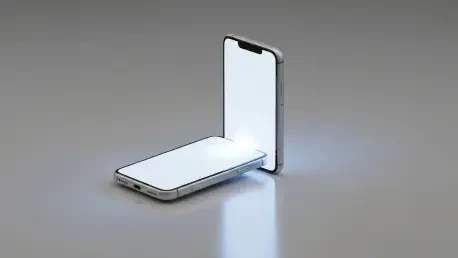
The behavior of the new screen flash feature is intentionally designed to be more subtle than its LED counterpart, offering a different kind of visual cue. When a notification arrives, instead of a sharp, piercing blink of light, the iPhone’s entire display smoothly and temporarily increases its brightness for a few moments before returning to its previous level. This gentle pulse of light is designed to catch the user’s eye without being as jarring or disruptive as the camera flash, which can be overly intense in dark environments. The effectiveness of this alert is most pronounced when the device’s screen brightness is not already at its maximum setting, as the contrast in luminosity is what makes the notification apparent. This functionality is particularly well-suited for users who tend to place their phones face up on a desk or nightstand. It provides an ambient awareness that something new has arrived, allowing the user to remain informed without the more aggressive alert of the flashing LED. The implementation showcases a focus on providing options that cater to different user sensitivities and environmental contexts.
3. How to Configure Flash for Alerts
Activating and tailoring the visual alert system on an iPhone running iOS 26.2 is a straightforward process nested within the device’s Accessibility settings. Users can begin by opening the main Settings application and selecting the “Accessibility” category from the list. This section houses a wide array of tools designed to assist users with various sensory and motor needs. Inside the Accessibility menu, one must scroll to the “Hearing” subsection and tap on “Audio & Visual.” Towards the bottom of the subsequent screen is the “Flash for Alerts” option, which serves as the central control panel for this feature. On devices with the latest update, this menu expands to offer more choices than the simple on/off toggle of previous iOS versions. Users are now presented with distinct options to enable the “LED Flash,” the new “Screen” flash, or “Both” at the same time. This simple yet powerful set of choices allows for a highly personalized notification experience, directly from a centralized and easy-to-access location within the system settings.
4. Customization and Potential Complications
Beyond choosing the type of flash, the “Flash for Alerts” settings provide additional layers of customization to control precisely when the visual notifications are active. Two key toggles allow users to refine the feature’s behavior to their liking. The first option determines if the flashes should occur while the iPhone is locked, a setting many users prefer to enable to ensure they see alerts when not actively using their phone. The second toggle controls whether the flashes will work when the device is in Silent Mode. Keeping this enabled is highly recommended, as it aligns with the primary use case of providing non-audible alerts. However, users who own an Apple Watch should be aware of a potential complication. When notifications are configured to mirror from the iPhone to the watch, the system often prioritizes alerting the user on their wrist. Consequently, when the iPhone is locked, a mirrored notification may appear on the Apple Watch without triggering the flash alert on the phone itself. In such scenarios, the flash alert feature on the iPhone tends to function most reliably when the device is unlocked and in active use.
A Refined Approach to Visual Notifications
The introduction of the screen flash option in iOS 26.2 was a meaningful step forward in the platform’s approach to accessibility and user-centric design. This enhancement provided a more nuanced and flexible system for visual notifications, moving beyond the singular, high-intensity LED flash that had been the only option for years. By giving users the ability to choose between the screen, the LED, or both, Apple acknowledged the diverse needs and preferences within its user base. This update empowered individuals to create a notification experience that was better suited to their specific environment, whether they required a subtle pulse of light in a quiet office or a powerful flash for critical alerts. The inclusion of granular controls for locked-screen and silent-mode behavior further underscored a commitment to personalization, ultimately making the iPhone a more adaptable and inclusive device.