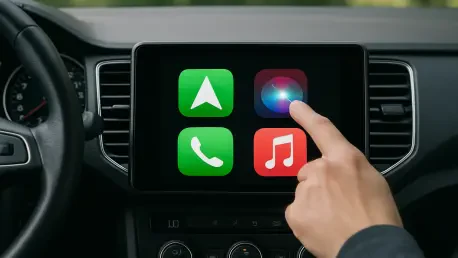

Spoken navigation guidance from apps like Apple Maps or Waze provides clarity but often results in constant audio ducking that ruins music playback. This phenomenon occurs when the system lowers the volume of music or podcasts to prioritize voice prompts, which can be jarring during a long drive or a favorite song. Since CarPlay is inherently tied to Siri for voice commands and hands-free safety, completely removing the assistant is not an option within the current software architecture. However, modern iOS updates have introduced granular controls that allow drivers to mitigate these interruptions without sacrificing the convenience of a connected dashboard. Achieving a quieter cabin requires a systematic approach to notification management and assistant behavior settings. By fine-tuning how the iPhone handles incoming data and vocal feedback, users can restore the balance between helpful information and uninterrupted entertainment, ensuring that the road ahead remains the primary focus while the audio experience remains entirely seamless and professional.
1. Implementing a Driving Focus for Distraction-Free Travel
Establishing a dedicated Driving Focus remains the most powerful method for filtering out the digital noise that often triggers Siri’s vocal interruptions. To begin this process, launch the Settings app on the iPhone and select the Focus menu. If a Driving profile is not already listed, tap the Plus (+) icon to add it from the provided templates. Once active, the configuration should prioritize “People” to specify a select list of contacts who are permitted to bypass the silence during a journey. This ensures that while general notifications from apps like Messages or WhatsApp are silenced, emergency communications can still reach the driver. All other app alerts are suppressed in the background, preventing Siri from announcing non-essential information that would otherwise lower the music volume or disrupt the flow of a podcast. This proactive filtering creates a baseline of silence that is essential for a more controlled environment, allowing the operator to maintain focus on the road without the constant pinging of social media.
Beyond filtering contacts, the Driving Focus offers automation features that eliminate the need for manual intervention once the vehicle is in motion. Within the Focus settings, it is crucial to configure phone call rules to allow either “Allowed People Only” or “Contacts Only,” which effectively blocks telemarketers and unknown callers from breaking the silence. Furthermore, creating an Auto-Reply message provides a professional way to inform senders that the recipient is currently driving, thereby reducing the psychological urge to dictate a response through Siri. To ensure this system functions without fail, scroll to the bottom of the Driving Focus menu, tap the “While Driving” section, and ensure that “Activate With CarPlay” is toggled on. This setting guarantees that the iPhone automatically transitions into this restricted state the moment it connects to the vehicle’s infotainment system, providing a consistent and quiet experience across every trip, regardless of the destination or duration of the commute.
2. Refining Siri Responses and Notification Announcements
Stopping Siri from reading every text message aloud involves navigating to specific notification settings that govern vocal behavior. Users should open Settings, then Notifications, and locate the “Announce Notifications” section. Within the CarPlay submenu, toggling off “Announce Messages” prevents the assistant from automatically vocalizing incoming texts, which is a major source of audio ducking. To further streamline interactions, enabling the “Reply Without Confirmation” option allows the user to send a dictated text in a single step. This bypasses the typical routine where Siri reads the message back for confirmation, a process that often takes several seconds and keeps the music volume low for an extended period. By removing this verification loop, the interaction becomes much faster and less intrusive, allowing the system to return to the primary audio source almost immediately after the user finishes speaking. This adjustment is particularly useful for those who frequently use voice-to-text features.
Adjusting the physical and vocal triggers for Siri can prevent the assistant from activating unintentionally due to cabin noise. By navigating to Settings, then Accessibility, and selecting Siri, users can enable the “Require ‘Siri’ for Interruptions” feature. This ensures that the system only responds to the specific wake word, preventing road noise or casual conversation from being misidentified as a command. Additionally, changing the “Siri Pause Time” to “Longer” or “Longest” provides the assistant with more time to wait before responding, which is helpful for those who find the software cuts them off mid-sentence. For the ultimate level of control, one can go to Settings, then Apple Intelligence & Siri, and turn the “Talk to Siri” toggle to “Off.” This configuration forces the assistant to only activate when the physical voice button on the steering wheel or the iPhone is pressed, completely eliminating accidental activations during a drive, ensuring that Siri only speaks when requested, providing a silent backdrop for the trip.
3. Controlling Navigation Voice Prompts and Audio Behavior
Navigation apps are often the most frequent culprits for audio interruptions, but they offer internal settings to manage their vocal footprint. While a trip is active in Apple Maps or Waze, tapping the screen reveals a speaker icon that provides three distinct levels of interaction. Selecting “Alerts Only” is a popular middle ground, as it mutes turn-by-turn directions while still providing audible warnings for traffic accidents, speed traps, or road hazards. For those who prefer total silence, the speaker icon can be set to a fully muted state. Google Maps users have similar granular control on their iPhone; by tapping the profile icon and entering the Navigation settings, they can enable “Play alerts even while muted.” This ensures that critical safety information is conveyed without the constant chatter of standard directional instructions, allowing the driver to rely on visual cues on the CarPlay dashboard instead of vocal prompts. This shift from vocal to visual guidance significantly reduces the frequency of audio interruptions.
Fine-tuning the way navigation audio interacts with other media requires a trip into the main iPhone system settings. Under the Apps section, selecting Maps and then Spoken Directions allows users to lower the guidance volume relative to the music. This makes the directions less jarring when they do occur. Perhaps most importantly, toggling off the “Directions Pause Spoken Audio” switch prevents the system from pausing podcasts or audiobooks entirely when a direction is announced. Instead of the media stopping and starting, the navigation voice will play over the audio, which remains at a lower volume in the background. This creates a much more fluid listening experience, as it eliminates the awkward silences and sudden stops that characterize the default CarPlay setup. Managing these settings ensures that the navigation system assists the driver without dominating the entire auditory landscape of the vehicle. These adjustments represent a significant step toward a customized user interface that respects the listener’s preference for continuous media.
4. Strategic Optimization of the Driving Environment
The implementation of these focused strategies transformed the way the iPhone interacted with the vehicle’s infotainment system, resulting in a more harmonious driving environment. By systematically adjusting notification priorities and silencing redundant vocal confirmations, the constant interruption of media playback was effectively minimized. The transition to a manual-only Siri activation model provided the necessary safeguards against accidental triggers caused by environmental noise or conversation. Furthermore, the calibration of navigation alerts ensured that essential road safety information remained accessible without becoming a nuisance. Drivers who adopted these configurations found that the balance between connectivity and tranquility was much easier to maintain over long distances. Ultimately, taking the time to refine these deep-seated software behaviors offered a practical solution for those seeking a more sophisticated and less intrusive technological experience while behind the wheel. The result was a cabin environment where technology served the user rather than competing for their attention.