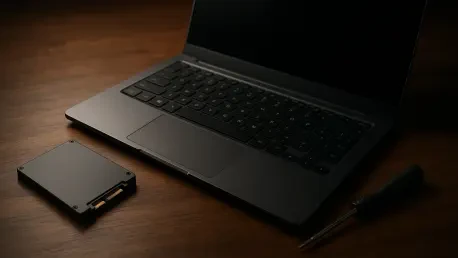

The transition from a 5,400 RPM mechanical hard drive to a solid-state drive marks the first critical step in modernizing obsolete portable hardware. In 2026, many users still rely on laptops from the late 2010s that, while capable of basic productivity, struggle with the modern visual demands of Windows 11. The operating system was designed with modern silicon architectures in mind, which often leaves older seventh or eighth-generation processors lagging behind during standard navigation. While Microsoft originally implemented strict hardware requirements, various methods have allowed these older machines to install the operating system. However, installation is only half the battle; ensuring a fluid user experience requires a meticulous approach to resource management and system tuning. Many of these older systems feature integrated graphics that share memory with the main system RAM, creating a bottleneck whenever the user interface attempts to render complex shadows or blur effects. By understanding how the operating system allocates resources to visual elements, a user can reclaim significant portions of the CPU’s power and the system’s memory, transforming a stuttering experience into a reliable workstation for daily tasks. This optimization is particularly relevant today as the push for sustainable computing encourages the reuse of existing hardware rather than the acquisition of new devices.
1. Disable Animations and Transparency
To begin the process of interface stabilization, one must address the most obvious source of graphical lag: the built-in system animations. On many older laptops, the process of a window minimizing or a menu sliding into view is handled by the integrated graphics processor, which often struggles with the frame rates required for a smooth transition. This results in perceptible dropped frames that make the entire system feel slower than its actual processing speed would suggest. To mitigate this, navigating to the Settings application is necessary, specifically under the Accessibility tab, where the Visual effects sub-menu is located. Within this section, the toggle for Animation effects should be switched to the off position. When this change is implemented, windows and menus will no longer attempt to transition through a visual sequence; instead, they will appear and disappear instantaneously. This immediate feedback significantly reduces the perceived latency of the operating system, as the user no longer has to wait for the hardware to finish rendering a decorative movement before they can interact with the next element on the screen.
Following the removal of animations, the transparency effects should be addressed on the same Visual effects page within the Accessibility settings. Transparency in Windows 11 uses a design language that applies a blur and tint to various windows and taskbar elements to provide a sense of depth. While visually appealing, this effect requires continuous calculations from the graphics processor to determine how the background colors should bleed through the foreground window. On older hardware, this constant recalculation can lead to a sluggish desktop experience, especially when multiple windows are open or when moving an application across the screen. By toggling off the Transparency effects, the user interface shifts to solid colors for the taskbar and application headers. This reduces the strain on the graphics subsystem, allowing it to focus its limited resources on more critical tasks, such as rendering web content or processing document edits. Furthermore, reducing the workload of the integrated GPU can lead to lower operating temperatures, as the chip does not have to work as hard to maintain the desktop environment.
2. Fine-Tune Advanced Performance Options
For a deeper level of optimization that goes beyond the basic settings menu, the legacy performance options panel provides granular control over the desktop environment. By pressing the Windows key + R and typing SystemPropertiesPerformance.exe, users can access a specialized menu that has remained a part of Windows for decades due to its effectiveness in troubleshooting and speed enhancement. This interface allows for the modification of specific behaviors that are not always visible in the modern settings app. Upon opening the Visual Effects tab, the Custom radio button should be selected to allow for individual control over the system’s aesthetic features. This menu is particularly useful because it allows a technician to disable several minor but cumulative performance-draining effects that occur in the background. By manually selecting which features to keep and which to discard, the user ensures that the operating system remains lean and focused on performance rather than appearance, which is vital for hardware that lacks modern dedicated video memory.
Within the Custom list, several items should be unchecked to maximize the speed of the interface on an aging laptop. Specifically, the options to fade or slide menus into view, fade or slide ToolTips, and fade out menu items after clicking should all be disabled. These fading effects are often responsible for the “heavy” feeling of a desktop interface on older processors. Additionally, unchecking the option to show shadows under windows and the animation for sliding open combo boxes will further reduce the rendering requirements for the desktop window manager. However, it is important to keep certain features enabled to maintain a professional and legible appearance. Leaving the “Smooth edges of screen fonts” and “Show thumbnails instead of icons” options enabled ensures that the text remains crisp and the file explorer remains functional for visual searching. This balanced approach ensures that the laptop does not look like a legacy operating system from twenty years ago while still benefiting from the significant performance gains associated with disabling the more demanding graphical transitions.
3. Declutter the Taskbar and Start Menu
The taskbar and Start menu are more than just navigation tools; in Windows 11, they are complex applications that frequently communicate with web services and utilize background processes. Removing unnecessary items from the taskbar is a practical step to reduce both visual clutter and system resource consumption. By right-clicking the taskbar and entering Taskbar settings, a user can hide the Search button, Task View, and Widgets. The Widgets feature is particularly resource-heavy, as it maintains a background process to fetch news, weather, and interests, which can consume a noticeable amount of RAM on systems with only 8 GB or less. Disabling these items ensures that the system is not wasting cycles on features that the user may never utilize. Furthermore, under the Taskbar behaviors section, turning off badges and the flashing of taskbar buttons can prevent minor background interruptions that occasionally trigger unnecessary CPU spikes when multiple applications are competing for attention.
The Start menu also requires attention to ensure it does not become a bottleneck for the user experience. By navigating to Settings, then Personalization, and finally the Start section, several options for recommendations can be disabled. These include suggestions for recently added apps, tips, and common shortcuts that the system frequently updates based on user behavior. By turning off these recommendations, the Start menu becomes a simpler, static list of applications, which loads faster and uses fewer background resources. Additionally, many users find that changing the taskbar alignment from the default center position to the left provides a more traditional feel that is slightly more efficient for muscle memory. Cleaning up the pinned applications by unpinning unused bloatware or pre-installed shortcuts also ensures that the system does not have to manage unnecessary icons in the primary navigation area. This streamlined configuration allows the processor to prioritize active application windows rather than the management of complex taskbar and menu states.
4. Simplify the Desktop Background
While it may seem like a minor detail, the desktop background can have a measurable impact on the performance of a laptop with limited resources. Windows 11 often defaults to Windows Spotlight, a feature that automatically downloads and cycles through high-resolution images from the internet to use as wallpapers. While these images are often beautiful, the background service required to download the images and update the metadata can consume memory and network bandwidth at inopportune moments. For an older laptop, every background service represents a potential point of failure for system smoothness. Navigating to Settings, then Personalization, and selecting the Background menu allows a user to switch the background type from Spotlight to a static Picture. Selecting a single, locally stored image ensures that the desktop environment remains constant and predictable, removing the need for the operating system to manage periodic background updates or file swaps.
Beyond the resource savings, using a static image contributes to a more stable thermal profile for the laptop. On older machines, the heat generated by constant background tasks can lead to thermal throttling, where the CPU slows itself down to prevent damage. By minimizing the number of active background services—including those that manage dynamic wallpapers—the overall heat output of the system is reduced. This allows the processor to maintain its maximum boost clock for longer periods when the user is actually performing demanding work, such as editing a document or participating in a video call. A simple, dark-themed static wallpaper is often recommended, as it is easier on the eyes and provides a professional look without requiring the system to perform unnecessary work. This approach reinforces the philosophy of optimization where small, incremental changes across different parts of the system combine to create a much more responsive and reliable environment for the user.
5. Manage Startup Applications and System Longevity
The final stage of refining an older laptop involves a thorough audit of the applications that are permitted to launch automatically when the computer boots. Over time, many software packages add themselves to the startup list, which can drastically increase boot times and consume valuable RAM before the user even opens their first program. By right-clicking the Start button and opening the Task Manager, one can navigate to the Startup apps tab to see a complete list of these programs. Applications such as Microsoft Edge, Teams, and various third-party update utilities often have a high startup impact. Disabling these entries ensures that they only run when the user specifically opens them, rather than idling in the background and competing for CPU cycles. It is critical, however, to leave essential drivers related to audio, security, and graphics utilities enabled to ensure that the hardware functions correctly and the system remains protected against modern digital threats.
The optimization process concluded with a significant reduction in system latency and a more predictable user experience for the legacy hardware. It was determined that the combination of targeted hardware upgrades and strategic software adjustments successfully mitigated the overhead of the modern operating system. Technicians found that after these specific settings were applied, the memory usage at idle dropped by nearly a gigabyte, and the CPU spikes during desktop navigation were virtually eliminated. This demonstrated that even a machine approaching a decade of service could remain viable in a professional or educational setting. Moving forward, the most effective strategy for maintaining this performance involved regular monitoring of background processes and the avoidance of unnecessary software installations. These actions proved that through careful management, the lifespan of existing technology was effectively extended, providing a sustainable solution to the problem of aging hardware. The resulting system environment felt both modern and efficient, showing that the latest software did not necessarily require the latest hardware to be useful.