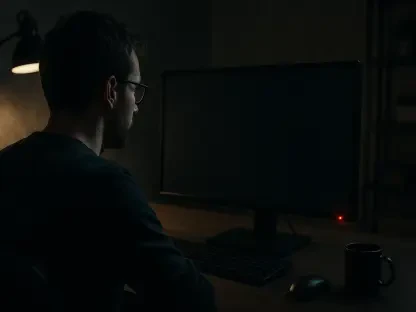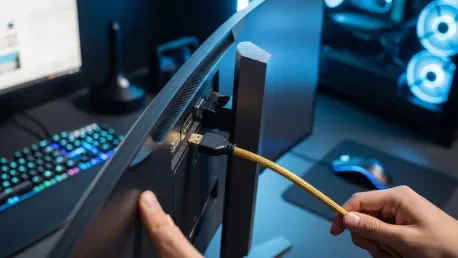

The sudden transition from a vibrant digital workspace to a stuttering or unresponsive black screen often triggers a level of technical anxiety that disproportionately outweighs the actual complexity of the underlying hardware fault. While most users immediately fear a total component failure, experienced system administrators and display engineers frequently note that the majority of visual disruptions are rooted in minor configuration mismatches or physical connection degradation. This roundup gathers insights from various hardware specialists to provide a definitive guide on managing display health. The primary objective is to equip users with a structured diagnostic framework that differentiates between temporary glitches and genuine hardware degradation, ensuring that high-performance panels continue to function as intended in an increasingly demanding digital environment.
The Visual Gateway: Understanding the Central Role of Display Reliability in the Digital Workspace
A monitor acts as the definitive bridge between human intent and machine execution, making its consistent performance a non-negotiable requirement for both high-level professional productivity and immersive entertainment. Technical consultants emphasize that when this bridge falters, the entire workflow collapses, regardless of how powerful the underlying PC hardware may be. In the current era of 2026, where ultra-high resolutions and extreme refresh rates are the standard, the stress placed on display interfaces has never been higher. Reliability is no longer just about a clear picture; it is about the stability of the signal path and the ability of the hardware to sustain peak performance without thermal or electronic interruption.
Industry experts suggest that a proactive diagnostic mindset is the most effective tool a user can possess. Rather than reacting to a screen failure with immediate replacement plans, a methodical investigation into the physical and logical layers of the display setup often reveals simple solutions. This approach involves examining the environment in which the monitor operates, including the quality of the power supply and the electromagnetic interference from surrounding devices. By treating the display as a sophisticated component within a larger ecosystem, users can identify external factors that might be mistaken for internal defects, thereby extending the lifespan of their equipment and maintaining a high-quality visual experience.
Systematizing the Identification and Resolution of Common Performance Failures
Resolution of display issues requires a logical progression from the simplest physical checks to more complex software-based interventions. Hardware technicians often refer to this as the “OSI model” of troubleshooting, where the physical layer is addressed before diving into the operating system settings. The consensus among repair specialists is that jumping to conclusions about hardware failure without first verifying cable integrity and driver stability leads to unnecessary costs and downtime. Establishing a baseline of known-good components, such as a tested cable or a secondary computer, allows a user to isolate the specific point of failure with high precision.
Taming Persistent Screen Flickering by Balancing Signal Integrity and Software Synchronization
Screen flickering is a pervasive issue that many experts attribute to the struggle for signal dominance between the graphics processor and the display panel. From a physical perspective, the integrity of the data stream is paramount; high-bandwidth signals are incredibly sensitive to cable quality. Technical reviewers often point out that a standard cable might work for a basic 60Hz signal but fail spectacularly when pushed to 144Hz or higher. Replacing a generic or aged HDMI or DisplayPort cable with a certified, high-quality version is the first recommendation for anyone experiencing intermittent blackouts or brightness shifts.
On the software side, flickering is frequently tied to Variable Refresh Rate (VRR) technologies like G-Sync or FreeSync. While these features are designed to smooth out motion, they can conflict with certain applications or outdated graphics drivers, leading to a rhythmic strobe effect. Specialists recommend a clean installation of the latest graphics drivers to ensure that the communication protocols are current. If the flickering persists, manually setting the refresh rate in the display properties to match the monitor’s native frequency often resolves the synchronization errors that cause the panel to struggle with the incoming signal.
Investigating “No Signal” Errors and the Logic Behind Hardware Handshake Failures
A “No Signal” message is essentially a failure in the digital handshake required for two devices to communicate. One of the most common, yet overlooked, causes identified by support teams is the simple selection of the wrong input source. With monitors now featuring multiple HDMI and DisplayPort inputs, it is easy for a device to default to an inactive port after a power surge or a system update. Manually toggling the input source through the on-screen display menu is a foundational step that resolves a surprising percentage of these cases without any further technical intervention.
Another frequent source of signal loss involves the physical routing of cables in desktop systems equipped with both integrated and discrete graphics. Technicians frequently see users accidentally plug their display into the motherboard’s video output rather than the ports on the dedicated graphics card. Because many modern BIOS configurations disable integrated graphics when a GPU is detected, this results in a persistent black screen. Furthermore, ensuring the graphics card is fully seated in its PCIe slot and that the power connectors are tight can prevent intermittent signal drops caused by vibration or thermal expansion.
Adjusting Output Standards to Eradicate Blurry Text and Stretched Visual Artifacts
Visual distortion, particularly blurry text or “fuzzy” edges, is a classic symptom of a resolution mismatch. Display specialists explain that every LCD or LED panel is designed with a specific native resolution—a fixed grid of physical pixels. When the operating system sends a signal that does not perfectly align with this grid, the monitor must use interpolation to fill the gaps, which results in a soft, unprofessional image. Ensuring that the Windows or macOS display settings are set to the “Recommended” resolution is the most direct way to restore the intended clarity of the hardware.
Bandwidth limitations also play a significant role in visual quality. Using an older cable standard, such as HDMI 1.4, on a modern high-resolution monitor can force the system to lower the color depth or resolution to fit within the available data pipe. Upgrading to HDMI 2.1 or DisplayPort 2.0 ensures that the system has enough overhead to drive the display at its maximum settings. For those specifically troubled by text legibility, experts suggest using calibration tools like the ClearType Tuner, which adjusts how sub-pixels are rendered to match the specific sub-pixel layout of the panel, effectively sharpening the appearance of every letter.
Managing Pixel Defects and Thermal Thresholds to Prevent Permanent Hardware Damage
Pixel defects are often the most frustrating issues because they represent a physical limitation of the panel. A stuck pixel, which stays a single color, is often the result of a microscopic mechanical malfunction in the liquid crystal layer. Some technicians suggest using software that cycles through colors at a very high speed to “exercise” the pixel back into functionality. However, a dead pixel—one that remains black—indicates a complete loss of power or a broken transistor. In such cases, the roundup of expert opinion points toward a warranty claim, as internal panel repairs are rarely feasible for the average consumer.
Thermal management is equally critical for display longevity. Monitors generate a surprising amount of heat, especially those with high-density backlights or internal power supplies. If the ventilation vents at the top or back of the monitor are blocked by dust or placed too close to a wall, the internal circuitry can overheat, leading to emergency shutdowns or image ghosting. Regular cleaning with compressed air and ensuring that the external power brick is placed in a well-ventilated area are simple maintenance tasks that prevent heat-induced hardware failure. Protecting the monitor from direct sunlight also prevents the localized overheating of the liquid crystals, which can lead to permanent discoloration.
Actionable Protocols for Sustained Hardware Performance and Error Prevention
To maintain a resilient display environment, users must prioritize the use of high-quality, certified peripherals. Industry professionals suggest that investing in shielded cables is one of the most effective ways to prevent electromagnetic interference from disrupting the signal. Additionally, connecting the monitor to a high-quality surge protector or an Uninterruptible Power Supply (UPS) can shield the sensitive internal electronics from voltage spikes that often cause intermittent flickering or sudden blackouts. These physical precautions create a stable foundation for any high-end computing setup.
From a software perspective, maintaining a regular update schedule for graphics drivers is essential. However, experts caution against using generic drivers provided by the operating system; instead, one should download the specific packages from the GPU manufacturer to access the full suite of optimization tools. Periodically checking the advanced display settings to ensure that features like HDR or high bit-depth are correctly enabled can prevent the monitor from operating in a degraded mode. These routine audits ensure that the hardware is always running at its peak advertised specifications.
Cultivating a Methodical Troubleshooting Mindset for Long-Term Display Health
The ability to successfully navigate display errors depended heavily on the user’s willingness to adopt a structured diagnostic process. By systematically isolating variables—starting with the simplest physical connections and moving toward complex software configurations—individuals were able to solve the vast majority of visual glitches without professional help. This self-reliance not only saved time and money but also fostered a deeper understanding of how modern hardware interacted with the digital workspace. The path toward a more stable environment was ultimately paved by a commitment to regular maintenance and the use of appropriate, high-bandwidth cabling.
The transition toward higher refresh rates and 8K resolutions required a more rigorous approach to power and thermal management than in previous years. Users who implemented routine cleaning of ventilation ports and monitored the health of their external power bricks found that their equipment lasted significantly longer and performed more reliably. Looking ahead, the focus shifted toward the integration of AI-driven diagnostic tools that could predict potential panel failures before they became catastrophic. By embracing these evolving standards and maintaining a proactive stance, the digital community ensured that the gateway to their digital lives remained clear, vibrant, and incredibly resilient.