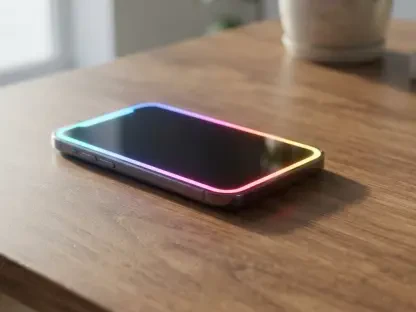

Thepersistentglowofasmartphonescreenduringlate-nighthourshaslongbeenasourceofsignificanteyestrainanddisruptedcircadianrhythmsformillionsofmobileusersworldwide. While initial iterations of dark mode were often viewed as a purely cosmetic preference, the technology has evolved significantly by 2026 into a sophisticated tool for both physiological health and hardware efficiency. High-resolution OLED panels, which are now the industry standard, benefit immensely from darkened pixels because they consume significantly less power and extend the overall lifespan of the device battery. However, many users still encounter frustrating inconsistencies where certain applications or specific websites refuse to adhere to the system-wide aesthetic, creating a jarring visual experience that negates the benefits of a darkened interface. As software ecosystems become more complex, mastering the subtle configurations of these display settings has become essential for anyone seeking a truly cohesive and comfortable digital environment. The following exploration details the advanced methods available to current Android users for refining their visual experience across every facet of the operating system. Building upon the foundational settings of the past, these modern techniques allow for a degree of customization that ensures the mobile interface remains gentle on the eyes regardless of the lighting conditions.
1. Widening App Compatibility
Android 17 introduced a paradigm shift in how the operating system handles legacy applications that lack native dark mode support, moving beyond simple color inversion to more intelligent rendering. The system now provides an Expanded configuration that analyzes app resources in real-time to apply a sophisticated dark theme without breaking visibility or accessibility standards. To access this feature, users should open their system settings and navigate directly to the Display category. Within this menu, tapping on the Dark theme text allows for deeper customization than a simple toggle. By switching the configuration from Standard to Expanded, the system essentially forces a dark interface onto every installed application, ensuring that even older tools or niche programs match the rest of the OS. This native approach reduces the visual jarring associated with white backgrounds and provides a more unified experience across the entire software library, which is a significant improvement over previous iterative updates. This feature is particularly useful for enterprise software that often lags behind consumer design trends, allowing professionals to maintain visual consistency throughout their workday.
For those individuals who may be operating on older versions of the software or seeking even more granular control, the hidden Developer Options menu remains a powerful resource for overriding system defaults. While Android 17 has streamlined much of this process, the “Override force-dark” toggle in the developer settings can still be utilized to achieve similar results in environments where the primary Expanded mode might encounter unexpected rendering issues. Accessing this menu typically requires multiple taps on the build number within the device information screen, a process that has become a staple for power users since the early iterations of the platform. Once unlocked, this setting serves as a secondary layer of enforcement for the dark theme, compelling apps to adjust their color palettes regardless of their internal configuration. This historical functionality paved the way for the modern features seen in 2026, highlighting a long-term commitment by developers to user-centric display customization. By utilizing these tools, users can effectively eliminate the “light flash” effect that occurs when transitioning between a dark system menu and a bright, unoptimized application interface. Moreover, this level of control ensures that no application is left behind as the industry continues to prioritize dark-first design principles.
2. Dimming the Mobile Web
A significant challenge in achieving a complete dark mode experience lies in the vast expanse of the mobile web, where many websites still default to stark white backgrounds. Even when the system and apps are correctly configured, opening a browser can lead to an uncomfortable burst of light that disrupts the user’s visual adaptation. Google Chrome addresses this through experimental features known as flags, which allow users to test advanced rendering engines before they become part of the standard interface. By manipulating these internal settings, users can force the browser to intelligently recolor web content, matching the dark aesthetic of the host device. This process does not merely invert colors but attempts to preserve the artistic intent of the website while ensuring that the luminance remains within a comfortable range for night-time viewing. This technological advancement has become increasingly reliable as algorithms for identifying background and text elements have improved, leading to fewer instances of illegible text or distorted images on complex web pages.
To implement this functionality, the user must first launch the Chrome browser on their phone and input chrome:flags into the address bar to access the experimental settings menu. Within this interface, use the search box to look for the word darken to locate the specific rendering engine controls. Find the item labeled Darken websites checkbox in themes setting and switch it to Enabled, then select the Relaunch button at the bottom to restart the application. Once Chrome reopens, tap the three-dot menu in the corner and choose Settings, then scroll to Appearance and select Theme. From this menu, ensure the box for Apply dark theme to sites, when possible is turned on to activate the new rendering logic. This multi-step process effectively bridges the gap between the local operating system and the remote content of the internet. The result is a seamless transition between the device’s home screen and the various websites visited throughout the day, creating a holistic dark environment that significantly reduces eye fatigue during extended browsing sessions.
3. Establishing a Routine
While a permanent dark interface offers numerous benefits, many users find that a static theme does not always suit the changing light of a typical day. A bright interface can actually be more legible under direct sunlight, whereas the dark mode is superior for indoor or evening use. Establishing an automated routine allows the device to adapt dynamically to the environment without requiring manual intervention from the user. This automation is rooted in the device’s ability to track local time and astronomical cycles, ensuring that the transition occurs precisely when it is most beneficial. By scheduling the theme change, users can leverage the high contrast of light mode for productivity during the morning and the soothing tones of dark mode for relaxation in the evening. This balance is crucial for maintaining a healthy relationship with technology, as it aligns the device’s output with the natural progression of human biological rhythms.
Setting up this routine is a straightforward process within the core system settings of any modern Android device. Users should navigate to the Display section of their device settings and tap the text for Dark theme or Dark mode settings to access the scheduling options. From here, choose the Schedule option and pick a specific timeframe or, more effectively, select the Sunset to sunrise automated rule. This rule utilizes location data to determine the exact moment the sun dips below the horizon, triggering the theme change in real-time. This level of automation ensures that the device is always in the optimal state for the current environment, whether the user is waking up in the early morning or winding down before bed. Such routines have become a standard recommendation for digital wellness, as they mitigate the impact of blue light exposure during the hours when the body is preparing for sleep. This proactive approach to display management represents a significant step forward in the ongoing effort to make technology more responsive to human needs.
4. Using Light Sensors for Activation
While time-based scheduling is highly effective for general use, it does not account for specific environmental changes, such as entering a dark room during the day or moving from a bright office to a dimly lit hallway. For a more reactive and precise setup, users can utilize hardware-based triggers that rely on the phone’s ambient light sensors. These sensors are designed to measure the actual luminosity of the surrounding area, allowing the device to flip the dark mode switch the moment lighting conditions change. This creates a truly adaptive experience where the phone feels like an extension of the environment rather than a static object. By moving beyond the clock and focusing on actual light levels, the device provides a more tailored response that can improve comfort in unpredictable situations. This method is particularly popular among those who frequently move between different workspaces or travel through varying lighting conditions throughout their day.
Implementing this reactive behavior typically requires the use of a specialized application such as Adaptive Theme, which bridges the gap between the light sensor hardware and the system theme settings. This tool allows the device to trigger dark mode based on the actual lighting in the room rather than the time of day, utilizing the built-in sensors to detect when the environment becomes sufficiently dim. Once configured, the application monitors the lux levels and initiates the theme transition automatically when the light falls below a user-defined threshold. This ensures that if a user enters a dark environment, the phone immediately compensates by darkening its own interface, preventing the sudden glare that often accompanies such transitions. This hardware-integrated approach represents the pinnacle of current display technology, providing a level of responsiveness that was once only possible through manual adjustment. As sensor technology continues to improve in 2026, these transitions have become nearly instantaneous and highly accurate, further enhancing the user’s interaction with their device.
5. Syncing Your Background Image
One of the most common oversights when configuring a dark interface is the home screen wallpaper, which can often remain bright and vibrant even when all menus and apps have transitioned to dark mode. This visual dissonance can be jarring, as the contrast between a dark system tray and a bright landscape background creates an inconsistent aesthetic. To achieve a truly professional and cohesive look, it is essential to synchronize the background image with the current system theme. By utilizing a dual-wallpaper system, users can ensure that their home screen complements the dark mode rather than clashing with it. This involves selecting two different images—one that is light and energetic for the daytime, and another that is muted and dark for the evening. When the system theme changes, the wallpaper swaps automatically, completing the visual transformation and providing a unified experience that feels intentionally designed.
To manage this synchronization efficiently, an application called Dark/Light Wallpaper Scheduler provides the necessary tools to automate the process. This utility allows the user to designate a specific light-colored wallpaper for daytime and select a darker, more muted wallpaper for nighttime use. Once the images are chosen, the app can be set to automatically swap them whenever the system theme changes, whether that change is triggered by a schedule or a light sensor. This creates a powerful visual cue that reinforces the theme transition, making the entire device feel more immersive. Beyond the aesthetic benefits, using a darker wallpaper on OLED screens also contributes to further battery savings, as fewer sub-pixels need to be fully illuminated. This holistic approach to theme management ensures that every aspect of the user interface—from the deepest system menus to the most visible background elements—is working in harmony to provide the best possible viewing experience.
The evolution of dark mode on the Android platform transformed a simple toggle into a comprehensive system for visual optimization and digital health. By the mid-2020s, the integration of forced dark themes for applications and experimental browser flags ensured that the mobile experience remained consistent across diverse content sources. These advancements were complemented by sophisticated automation tools that allowed devices to respond to both temporal cycles and real-time environmental lighting. Users who implemented these strategies found that their devices were no longer just passive screens but active participants in maintaining visual comfort. The transition to a past-tense understanding of these features highlighted how essential they became for daily digital interaction. Moving forward, the focus shifted toward even deeper integration of biometric feedback to adjust display characteristics. The successful application of these five secrets provided a robust foundation for anyone looking to maximize the utility and comfort of their mobile hardware. It remained clear that a well-configured device was the key to balancing modern connectivity with personal well-being.