
The safety protocols within HiLight Studio are designed to prevent hardware degradation by enforcing brightness tapers and maximum run-time limits for the LED array. This specialized software emerges as a sophisticated solution for owners of the Google Pixel 11 Pro series who find the default lighting capabilities somewhat restrictive in scope. While the hardware features a distinctive circular array of eight LEDs surrounding the rear camera bar, the native software implementation primarily limits their utility to basic Gemini interactions and a handful of prioritized contact alerts. By contrast, the introduction of HiLight Studio allows for a much deeper integration into the daily notification cycle of the smartphone. The application leverages the underlying hardware to provide visual feedback that was previously inaccessible to the end user. Through the use of custom animation patterns and granular color selection, the rear of the device becomes a functional extension of the notification shade. This approach addresses a common critique of the flagship series, where high-end hardware components often remain underutilized by the factory operating system. The software transition involves a shift from static, manufacturer-defined behaviors to a more dynamic and user-centric environment that prioritizes individual preferences and functional necessity.
1. Initial App Installation: The Source Repository
Because HiLight Studio is not available on the Google Play Store, you must manually install the application file from a trusted external source. The process begins by using a mobile browser to navigate to the official GitHub project page, which serves as the central hub for the application’s open-source development and distribution. Once on the repository page, the user should locate the “Releases” section typically positioned on the right side of the interface. This section contains the most stable versions of the software, often accompanied by detailed changelogs that outline recent bug fixes or feature additions. Selecting the most recent version ensures compatibility with the latest Android 17 updates found on the Pixel 11 Pro and Pro XL. Within the assets list of the chosen release, the specific file ending in the .apk extension must be identified and downloaded directly to the internal storage of the device. This manual acquisition method is standard for community-driven projects that operate outside of the traditional app store ecosystem, offering transparency regarding the underlying code and the development process itself.
Launching the installer requires the user to interact with the finished download notification or the file manager where the APK is stored. Android security systems will naturally trigger a prompt requesting permission to allow the installation of applications from unknown sources. This is a protective measure designed to ensure that the user is making a conscious decision to install software outside of the managed Play Store environment. After granting the necessary permissions to the browser or file manager, the installation sequence proceeds. A common occurrence during this stage is the appearance of a Play Protect notification labeling the software as unrecognized by the automated scanning system. This happens because the application is often signed with a debug certificate during its developmental phase. To bypass this security alert, the user must select the “more details” option within the prompt, followed by the “install anyway” command. This action finalizes the placement of the application on the device, making it visible in the app drawer and ready for the subsequent configuration steps required to interface with the phone’s unique hardware.
2. Configuring Permissions: The Shizuku Bridge
The LED hardware requires system-level access that standard apps cannot reach without specialized administrative privileges. To bridge this gap without resorting to complex modifications like rooting the device, a secondary tool known as Shizuku is utilized to facilitate a secure communication channel between HiLight Studio and the system’s hardware drivers. Shizuku operates by utilizing the Wireless Debugging feature inherent in the Android operating system, essentially granting the app the ability to execute commands with elevated permissions. Users must first download and open Shizuku from the Google Play Store, as it acts as the foundation for the entire customization experience. This architectural approach ensures that the modifications remain within the bounds of the system’s security framework while still providing the necessary depth of control over the eight-LED array. Without this intermediary service, the customization app would remain unable to trigger the lighting sequences or override the default system behaviors that govern the camera bar’s illumination.
Activating the wireless debugging environment is a multi-step process that Shizuku facilitates through an internal, step-by-step instructional guide. The user must enter the developer options of the Pixel 11 Pro and enable the Wireless Debugging toggle, which often requires being connected to a stable Wi-Fi network. Once this setting is active, the phone generates a unique pairing code that must be entered into the Shizuku interface to establish a trusted link. After the service is successfully started, the user returns to the HiLight Studio application and navigates to the “Setup” tab. Choosing the “Request access” option triggers an authorization prompt from Shizuku, which the user must confirm to allow HiLight Studio to communicate directly with the phone’s LED hardware. This link is the critical component that transforms the software from a simple interface into a powerful hardware controller. It is important to note that this specialized connection must be re-established if the smartphone is restarted, as the underlying debugging service does not persist across power cycles for security reasons.
3. Finalizing the Setup: Permissions and Aesthetics
To ensure the app reacts to your notifications and active windows, follow these final steps to grant the necessary data permissions. Within the Setup tab of HiLight Studio, the application will prompt the user to enable “Notification access” and “Usage access” through the system settings. Notification access is fundamental because it allows the software to monitor incoming alerts from specific apps, such as messaging platforms or email clients, and translate them into specific lighting triggers. Usage access is equally vital as it enables the app to detect which window is currently in the foreground, allowing for different lighting behaviors when a specific application is actively being used. By following the direct links provided in the setup menu, the user can toggle these switches with minimal navigation through the deep layers of the Android settings menu. Once these permissions are confirmed, the software gains a comprehensive view of the device’s activity, which is necessary for the automation of the LED array based on real-world usage patterns and incoming digital communication.
Activating the service and selecting a personal aesthetic represents the final phase of the configuration process. The user must switch the “Live” toggle to the on position within the main dashboard to initiate the background service that manages the LED sequences. Following this, navigating to the “Style” tab opens up a diverse range of animation patterns, including options such as pulse, breathe, wave, and rainbow. Each of these patterns can be further customized by selecting individual colors for the eight separate LEDs, allowing for over ten distinct color combinations per preset. This level of granularity ensures that a user can distinguish between different types of notifications based purely on the movement and hue of the light on the back of the phone. After the desired aesthetic is selected, the settings are applied in real-time, providing immediate visual feedback. It is essential to remember that if the device is powered off, the user must repeat the Shizuku activation process and relaunch HiLight Studio to restore these custom functionalities, as the elevated permissions are temporary by design.
4. Operational Parameters: Safety and System Integration
The implementation of HiLight Studio introduces a sophisticated layer of thermal and hardware management that is often absent in third-party customization tools. Because the eight-LED array on the Pixel 11 Pro XL was not originally intended for continuous, high-intensity operation, the software integrates several hard-coded limits to ensure the longevity of the components. For instance, ambient lighting effects are programmed to automatically deactivate after 30 seconds of activity to prevent heat buildup near the camera sensors. Users have the option to extend this duration to five minutes, but doing so requires acknowledging a warning regarding potential hardware strain. Furthermore, the application features a brightness taper mechanism that subtly reduces the intensity of the LEDs after they have been active for more than ten seconds. These safety measures are critical for maintaining the integrity of the device’s rear assembly, as excessive heat could theoretically impact the performance of the telephoto or main camera modules located in close proximity to the light sources.
Integration with the broader Android ecosystem is handled through a series of intelligent toggles that respect the user’s existing preferences. The application is designed to automatically synchronize with the system’s Do Not Disturb mode, ensuring that the LED array remains dark during meetings or sleep cycles. Additionally, a built-in quiet hours feature allows users to set specific schedules for the lighting effects, independent of the system-wide notification settings. For those concerned about energy consumption, the software includes a battery-saver mode that disables the animations once the device reaches a certain power threshold. From a privacy perspective, the application operates entirely on-device without requiring internet access permissions. This means that while the software monitors notification metadata to trigger the appropriate light patterns, no sensitive information is ever transmitted to external servers. This localized approach to data processing aligns with the security-conscious design of the Pixel series while providing the specialized functionality sought by power users.
5. Technical Context: The Pixel 11 Pro Series Hardware
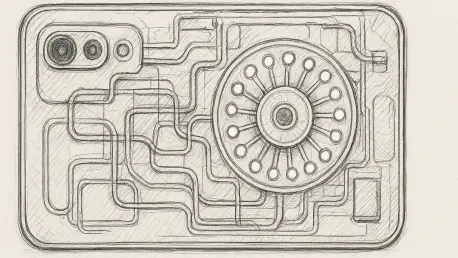
The Pixel 11 Pro series, including the Pro XL and the innovative Pro Fold, represents a significant step in the evolution of Google’s hardware design. At the heart of these devices lies the Tensor G6 chip, which manages the complex interplay between the Android 17 operating system and the various hardware sensors. The HiLight LED array is a distinctive physical feature of this generation, composed of eight individual light-emitting diodes arranged in a circular formation around the primary camera sensors. While the factory software treats these lights as a secondary feedback mechanism for the Gemini AI assistant, the hardware itself is capable of much more complex behavior. Each LED can be addressed individually, allowing for directional animations and multi-color gradients that are not possible on standard single-LED notification lights. The inclusion of this array on the Pro Fold specifically offers a unique utility, as it provides a way to receive visual alerts regardless of whether the device is folded or unfolded on a desk surface.
Understanding the hardware limitations is just as important as exploring its capabilities. The LEDs used in the Pixel 11 Pro series are optimized for efficiency rather than raw luminance, meaning they are designed to be visible in indoor environments without being distracting in low-light settings. The glass covering the camera bar provides a layer of diffusion that helps blend the light from the eight individual points, creating a more cohesive visual effect when animations like the “rainbow” or “wave” are active. However, this glass also acts as a thermal insulator, which is why the software limits mentioned previously are so important for preventing localized hotspots. The transition from the previous generation’s simpler designs to this complex array reflects a broader trend in mobile technology toward integrated, multi-functional hardware components. By leveraging third-party tools like HiLight Studio, enthusiasts are able to unlock the full potential of these components, turning a minor aesthetic detail into a core part of the user interface and the overall smartphone experience.
6. Functional Outcomes: Insights and Actionable Considerations
The installation of HiLight Studio transformed the Pixel 11 Pro’s camera bar from a minor aesthetic choice into a functional notification hub. Users found that the combination of Shizuku and open-source software provided a level of hardware control that was originally omitted by the manufacturer. By assigning specific colors to different communication apps, owners of the device gained the ability to identify the source of an alert without ever interacting with the screen. This proved particularly useful in professional environments where checking a phone display might be considered disruptive. The safety protocols integrated into the application ensured that the hardware remained protected, even when users pushed the boundaries of the LED array’s performance. The experience highlighted the ongoing importance of community-led development in the Android ecosystem, where software gaps in flagship hardware are often filled by independent creators who prioritize user agency and customization.
Moving forward, owners of the Pixel 11 series should consider the stability of their setup as part of their routine device maintenance. Since the Shizuku connection does not survive a reboot, a practical next step involved creating a quick-access folder for the necessary utility apps to streamline the reconnection process. It was also noted that staying updated with the GitHub repository allowed users to benefit from optimizations that reduced the impact on battery life over long-term use. For those who encountered minor conflicts with the native Gemini lighting, temporarily disabling the system’s default HiLight settings often resolved the issue. Ultimately, the successful deployment of this customization tool demonstrated that the Pixel 11 Pro hardware possessed significant untapped potential. By following the structured installation and permission steps, users successfully bridged the gap between basic factory settings and a truly personalized mobile experience. The transition from a static hardware feature to a dynamic notification system provided a meaningful upgrade to the device’s daily utility.