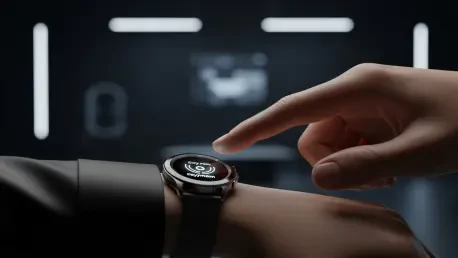

Modern wearable technology has reached a point of sophistication where a Samsung Galaxy Watch is no longer just a digital timepiece but a comprehensive hub for biometric data and seamless productivity. Many users, however, fall into the trap of using these powerful instruments exactly as they come out of the box, unknowingly sacrificing significant portions of battery life and ergonomic efficiency. When a device is designed to be on the wrist for nearly twenty-four hours a day, the friction caused by inefficient navigation or unnecessary screen activations can aggregate into a frustrating user experience. It is essential to recognize that the default configuration is merely a baseline, intended to provide a functional start for the widest possible demographic rather than a specialized setup for individual needs. By moving beyond these standard parameters, one can unlock a much more responsive interface that anticipates needs rather than merely reacting to commands. The transition from a passive wearer to an active power user involves identifying common pitfalls that drain resources and clutter the interface, ultimately leading to a more streamlined and professional interaction with the hardware. Furthermore, as wearable software ecosystems continue to evolve between 2026 and 2028, the ability to fine-tune these settings becomes a prerequisite for maintaining device longevity and ensuring that the hardware remains relevant in a rapidly changing technological landscape.
1. Relying Only on the Default Quick Settings
The Quick Settings panel serves as the primary gateway to the most frequently used features of a Samsung Galaxy Watch, yet many people leave it in its factory-installed state. This oversight often results in a cluttered interface where essential tools like the flashlight, battery saver, or flight mode are buried behind multiple swipes, while unused icons occupy valuable screen real estate. Every second spent scrolling through irrelevant shortcuts is a moment of lost efficiency that contradicts the primary purpose of a smartwatch. Customizing this panel allows the most critical functions to be positioned exactly where the thumb naturally lands, transforming the watch from a generic gadget into a precision tool tailored to a specific lifestyle. Whether one is a fitness enthusiast who needs rapid access to workout modes or a professional who requires frequent silences for meetings, the layout should reflect those priorities. Neglecting this simple adjustment means the user is working for the watch, rather than the watch working for the user, which is a fundamental misuse of the device’s interface potential.
Instead of sticking with the factory layout, customize the Quick panel to access the tools used most frequently throughout the day. To modify these shortcuts directly on the watch, swipe down from the top of the watch face to reveal the current panel. From there, swipe all the way to the left and hit the Plus icon to enter the editing interface where modifications can be made. Use the Minus icon to remove shortcuts that are no longer needed or the Plus icon to add new ones from the available library. For those who find the small screen of the watch difficult to navigate, the same results can be achieved using the smartphone. Open the Galaxy Wearable app on the paired phone and select the Quick panel option from the menu. Hold and drag icons to move them around to the desired order, and use the Minus icon to get rid of shortcuts that clutter the view. Once the ideal configuration is reached, tap Save to confirm the changes and sync the new layout to the watch immediately. This ensures that every swipe down provides immediate value without the need for unnecessary navigation.
2. Forgetting to Turn on the Water Protection Feature
Exposure to moisture is one of the most common environmental challenges a smartwatch faces, and failing to utilize built-in protection features can lead to long-term hardware degradation. While these watches are designed with high water resistance ratings, the physical impact of swimming or even a heavy shower can trigger ghost touches on the capacitive screen, potentially changing settings or starting unintended activities. More importantly, water can become trapped in the speaker grill, leading to muffled audio and potential corrosion over time if not properly addressed. The Water Lock feature is not merely a software toggle; it is a mechanical safeguard that disables touch input and prepares the device for an eventual drainage cycle. Ignoring this mode when entering aquatic environments is a gamble with the device’s longevity, as the accumulation of mineral deposits from water can eventually compromise the delicate internal components responsible for sound production and pressure sensing.
Before going for a swim or stepping into a shower, users should manually activate the mode that prevents accidental screen taps and clears out moisture upon completion. This can be done quickly using the Quick Settings menu by pulling down from the top of the screen and tapping the icon that looks like two water droplets. For a more detailed approach, go to the Settings menu, find and select Advanced features, then choose Water lock and switch the toggle to the On position. This action effectively freezes the display and prevents the high-pressure environment of moving water from being misinterpreted as user input. Once the aquatic activity is finished, the mode must be deactivated to restore the watch to its normal state. To turn this off later, press and hold the Power button as directed on the screen. This will initiate a series of loud, vibrating tones designed to physically eject water from the speaker cavity, ensuring that the internal hardware remains dry and functional. This maintenance routine is vital for anyone who plans to use their device in diverse environments from 2026 to 2028.
3. Overlooking the Double-Tap Button Shortcut
The physical buttons on a Samsung Galaxy Watch are often underutilized, with many owners only using them for the basic functions of returning to the home screen or viewing recent apps. However, the Home button possesses a hidden layer of utility that can significantly reduce the time spent digging through the app drawer. By default, the double-tap gesture on this button might not be mapped to the user’s most vital application, representing a missed opportunity for high-speed interaction. In scenarios where time is of the essence, such as during a workout or while commuting, being able to launch a specific app with a tactile double-click is far superior to navigating a digital menu. This feature is particularly useful for applications that do not have dedicated tiles or complications on the watch face, providing a “secret” entrance to the software that is most important to the individual wearer.
Stop navigating through complex menus to find a favorite app; instead, program the physical Home button to open it instantly with a simple gesture. To set this up, open the Settings on the watch and scroll down to find the section labeled Advanced features or Buttons and gestures. Select the Home key or Customize keys option to see the list of available button mappings. Within this menu, tap on Double press and a list of all installed applications will appear. Pick the specific app that should be linked to this action, whether it is a payment app, a voice recorder, or a specific health tracking metric. Once selected, the watch will immediately update its behavior, allowing that application to be summoned from any screen without looking at the display. This tactile shortcut provides a level of reliability and speed that defines the experience of a high-end wearable, ensuring that the most used tool is always just two clicks away, regardless of what else is happening on the screen.
4. Ignoring the Movie Theater Mode
Maintaining social etiquette in dark or quiet environments is often overlooked by smartwatch users, leading to the accidental illumination of a bright screen in a movie theater or a loud notification during a formal presentation. The Samsung Galaxy Watch includes a dedicated mode designed to address these specific scenarios, yet it remains one of the least utilized features in the system. Beyond the social implications, leaving the watch in its standard operating mode in these environments can be a significant distraction to the wearer, as every wrist movement might trigger the display. Theater mode is a comprehensive solution that silences all haptic and audible alerts while ensuring the screen remains dark until manually prompted. This not only preserves the atmosphere of the room but also serves as a temporary battery-saving measure, as it prevents the power-hungry display and vibration motor from activating unnecessarily during the duration of an event.
Avoid bothering others in dark rooms or quiet settings by properly setting up the mode that silences notifications and keeps the screen dark until it is no longer needed. To initiate this, swipe up from the bottom of the watch face and open the Settings icon. Select the Modes and Routines option, then tap on Theater to begin the configuration. Because this mode often integrates with the broader smartphone ecosystem, the watch will provide a prompt to continue the setup on the connected smartphone. Hit Get started on the phone screen to customize how the mode behaves. Choose how long the mode should stay active, whether for a set number of hours or until the next alarm. Decide if the system should also turn on Do Not Disturb to block incoming calls and messages entirely during this window. Finally, pick any additional automated actions that should occur when this mode is triggered, such as lowering phone volume or changing the watch face. Confirm these choices and finish the setup to ensure that the device remains a silent, unobtrusive companion during sensitive moments.
5. Leaving the Wrist Wake-Up Feature Active
The “Raise wrist to wake” feature is a classic wearable function, but in many modern contexts, it has become more of a hindrance than a help. Every time the arm moves during a conversation, while driving, or even while typing on a keyboard, the internal accelerometer can trigger the screen to turn on. This constant cycling of the display is one of the primary drivers of battery drain, as the main processor must frequently jump from a low-power state to a full-activity state. Furthermore, the sudden glow of the screen can be distracting in low-light environments. Modern Samsung Galaxy Watches are equipped with highly efficient co-processors that allow for an “Always On” display to show the time with minimal energy impact. By switching from a motion-triggered display to a constant, low-power one, users can enjoy the convenience of seeing the time at a glance without the erratic and battery-intensive behavior of the wrist-wake sensor.
To prevent the screen from turning on every time the arm moves, it is often more efficient to switch to an Always On display, which utilizes a specialized low-energy mode for simple timekeeping tasks. To enable the constant display, swipe up to view the app drawer, go to Settings, and then tap on Display. Within this menu, switch on the Always On Display toggle to keep the watch face visible at all times in a dimmed state. To complete the optimization, stay in the Display settings and find the Raise wrist to wake option. Turn the toggle for this feature to the Off position. By disabling the motion trigger while keeping the display on, the watch behaves more like a traditional timepiece that is always readable but doesn’t react aggressively to every physical movement. This change significantly stabilizes battery life and provides a more professional appearance, as the watch face remains consistent rather than constantly flashing on and off throughout the day.
Maintaining Peak System Health Through Software Updates
The various optimizations and adjustments discussed previously reached their maximum effectiveness when the underlying system remained updated with the latest firmware revisions. Throughout the transition into the current year, the relationship between hardware and software became increasingly integrated, requiring regular maintenance to ensure that new battery-saving protocols and security patches were correctly applied. Users who ignored these updates often found that their devices developed minor glitches or failed to sync properly with the evolving Galaxy Wearable app. The effort invested in fine-tuning the Quick settings or button shortcuts was only preserved when the operating system operated at peak performance. Consequently, a proactive approach to software management was adopted by the most successful users, ensuring that the watch remained a reliable tool for health tracking and communication without the burden of outdated code or legacy bugs.
The process of keeping the watch current was straightforward and ensured that all new features and refinements were available to the user immediately. To verify the status of the device, users opened the Settings menu and scrolled to the very bottom to tap on the Software update section. It was necessary to ensure that the watch was linked to a smartphone via a stable connection to download the latest version of the software. Once the update was initiated, the system handled the installation and restarted the device automatically, refreshing the internal caches and optimizing the power management settings. This final step in the optimization journey ensured that the hardware performed as intended, protecting the investment made in the wearable technology. By following these steps and avoiding common configuration errors, owners of the Samsung Galaxy Watch successfully transformed their experience from a standard out-of-the-box setup into a highly specialized and efficient digital assistant.