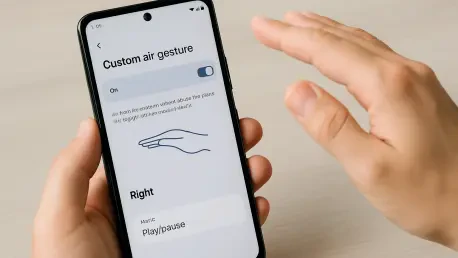

Interacting with a mobile device typically requires a physical connection through touchscreens or buttons, yet the modern smartphone is equipped with a sophisticated array of sensors that remain largely underutilized by the average consumer. Among these internal components, the proximity sensor stands out as a powerful tool for accessibility and efficiency, allowing a handset to detect physical presence without direct contact. By harnessing this hardware through specialized automation software, users can transform simple physical movements into digital triggers, effectively creating a “no-touch” interface that feels both futuristic and practical. This capability is particularly advantageous in scenarios where hands are occupied or when a discreet, rapid response is required from the operating system. Instead of navigating through multiple menus or fumbling for a specific icon, a user can simply bring the phone toward their face to initiate a complex sequence of tasks. This level of customization represents the pinnacle of the Android ecosystem’s flexibility, offering a degree of control that other platforms often restrict through locked software environments.
The foundation of this advanced functionality lies in the ability to bridge the gap between hardware detection and software execution, a process that has become increasingly streamlined in 2026. While many manufacturers include basic gesture controls for silencing calls or waking the screen, these pre-installed options are frequently limited in scope and cannot be tailored to individual workflows. Custom air gestures overcome these limitations by allowing the user to define exactly what happens when the proximity sensor is engaged. For instance, a runner might want to trigger a voice-activated music search without breaking their stride, or a professional might need to launch a quick voice memo while wearing gloves. The process of building these shortcuts is not reserved for software engineers; rather, it is accessible to anyone willing to explore the depth of system-level automation. By understanding how to manipulate these sensory inputs, one can effectively reprogram the way they interact with their device, turning a standard smartphone into a highly personalized productivity hub that responds to the environment in real-time.
1. Launch the Automation Tool
The first phase in modernizing a device’s interface involves selecting and initializing a reliable environment where these custom rules can reside and function without interruption. MacroDroid has established itself as a premier choice for this task due to its balance of powerful logic and an accessible user interface that does not require root access for most standard operations. Upon opening the application, the initial setup screens provide a brief overview of the tool’s capabilities, emphasizing its role as a logic engine that monitors specific conditions to perform desired actions. It is essential to proceed through these introductory materials to reach the primary dashboard, which serves as the command center for all future automated behaviors. This dashboard is designed to provide a clear overview of active processes, ensuring that the user remains in complete control of which sensors are currently being monitored by the application’s background services.
Once the main interface is visible, the most critical step is to ensure that the automation engine itself is authorized to run within the Android environment. In the upper-right corner of the screen, a prominent toggle switch dictates whether the service is dormant or active; this must be flipped to the “on” position to enable the detection of gestures. Modern Android versions are highly protective of battery life and system resources, meaning the app may prompt for specific permissions to bypass background execution restrictions. Granting these permissions is a necessary trade-off for achieving the low-latency response required for air gestures to feel natural and instantaneous. Without this active status, the proximity sensor will continue to function for standard tasks like turning off the screen during a call, but it will not communicate with the custom macros designed to enhance the user’s broader mobile experience.
2. Create a New Automation
With the software environment fully initialized and ready to receive instructions, the focus shifts toward the actual architectural design of the new gesture. This process begins by selecting the option to create a fresh macro, which serves as the container for the specific “if-then” logic that will govern the air gesture’s behavior. By tapping the “Add Macro” tile on the primary menu, the user enters a specialized workspace divided into distinct color-coded zones: Triggers, Actions, and Constraints. This organizational structure is designed to simplify the complex task of programming by breaking it down into its constituent parts. A macro essentially functions as a recipe; it defines what event must happen to start the process and what specific result should follow. Navigating this workspace requires a focused approach to ensure that the logic remains lean and efficient, preventing accidental triggers while maintaining high reliability.
The workspace is the nerve center where the user’s creative vision for their device begins to take a tangible form through sequential logic blocks. It is important to view this stage not as a static configuration but as the construction of a dynamic rule that will operate silently in the background of the operating system. At this point, no specific sensors or actions have been linked, providing a blank slate for the user to determine the scope of their automation. While the primary goal is to establish a face-proximity gesture, this same menu provides the gateway to thousands of other potential combinations, from location-based triggers to time-sensitive alerts. The intuitive nature of this design ensures that as the user becomes more comfortable with basic gestures, they can eventually return to this screen to add layers of complexity, such as requiring certain apps to be open before the gesture becomes active or setting specific time windows for the gesture to function.
3. Set up the Sensor Trigger
Establishing a trigger is the most nuanced part of the configuration because it defines the exact physical conditions the smartphone must detect to execute a command. Within the red section of the macro builder, selecting the proximity sensor from the list of available hardware inputs tells the device to prioritize data from the small sensor typically located near the earpiece. This sensor works by emitting an infrared beam and measuring the reflection to determine how close an object is to the screen. When configuring this in the automation tool, the user is presented with a choice between “Near” and “Far” states. Selecting “Near” is vital for an air gesture, as it ensures the action only fires when the phone is intentionally brought close to a surface, such as a hand or a face, mimicking the natural motion of preparing to speak into the handset.
The calibration of this sensor trigger is what separates a seamless user experience from one plagued by accidental activations. By confirming the “Near” status, the software is instructed to ignore any “Far” signals that occur during regular device handling, such as when the phone is resting on a desk or being held at arm’s length. This specific configuration utilizes the hardware’s inherent ability to distinguish between casual movement and deliberate proximity. Moreover, this trigger mechanism is highly energy-efficient compared to camera-based gestures, as the proximity sensor consumes negligible power while waiting for an event. This allows the air gesture functionality to remain active throughout the day without significantly impacting the battery longevity of the device. Once the trigger is set, the phone effectively becomes “aware” of its physical orientation relative to the user, waiting silently for the specified movement to occur.
4. Define the Resulting Action
After the trigger has been established to detect physical proximity, the next logical step is to determine exactly what the smartphone should do once that condition is met. In the blue “Actions” section of the configuration screen, the user has the opportunity to map the physical gesture to a specific software function, in this case, the initiation of a voice search. By selecting “Device Actions” and then “Voice Search,” the macro is instructed to bypass the typical manual steps of unlocking the phone and tapping a microphone icon. This creates a direct pipeline from a physical motion to a digital assistant, allowing for a hands-free transition into a search or command state. This specific action is highly versatile, as it can trigger the default Google Assistant or any other voice-enabled service the user has designated as their primary input method.
The implementation of this action serves as a practical demonstration of how automation can eliminate friction in daily mobile usage. Instead of the device being a passive tool that requires constant manual input, it becomes a proactive assistant that anticipates the user’s needs based on their physical behavior. When the proximity sensor registers the “Near” state, the activation of the voice search occurs almost instantaneously, providing immediate haptic or visual feedback to confirm the phone is listening. This responsiveness is crucial for maintaining the “magical” feel of an air gesture, ensuring that the software keeps pace with the user’s natural movements. Beyond just voice search, this section allows for the possibility of stacking multiple actions, such as turning on the flashlight or sending a pre-written text, though keeping the initial setup simple is often the best strategy for ensuring high success rates during the early stages of adoption.
5. Label Your Creation
Organizational clarity is a hallmark of effective device management, particularly when dealing with background processes that may not have a visible interface during daily use. At the top of the macro creation screen, providing a descriptive name for the newly minted gesture is a small but essential step that ensures the user can easily identify and modify the rule in the future. Names like “Face Proximity Search” or “Voice Raise Gesture” are preferable to generic titles because they describe both the trigger and the result. As a user begins to build a library of different automations—perhaps one for home, one for the car, and one for the office—having a clear labeling system prevents confusion and makes troubleshooting significantly easier if a conflict between two macros ever arises.
The labeling process also serves as the final check of the logic flow before the automation is committed to the device’s permanent memory. By assigning a name, the user is essentially “signing off” on the recipe they have created, acknowledging that the triggers and actions are correctly aligned. This phase of the setup represents the transition from a conceptual idea to a functional system component. In a professional context, where a device might be used for critical tasks, knowing exactly which automation is responsible for a particular behavior allows for better control over the mobile environment. Even though this title is only visible within the automation app’s management list, it provides a sense of ownership over the custom features that now differentiate this specific Android device from a standard, out-of-the-box configuration.
6. Store and Activate
Finalizing the automation requires a formal save command to move the macro from the temporary workspace into the active execution queue. By tapping the back arrow in the upper-left corner, the user prompts a confirmation dialog that guards against accidental exits and ensures that all logic blocks are properly compiled. Selecting the save option triggers the application to register the new rule with the system’s background listener service. At this moment, the proximity sensor begins to actively monitor for the “Near” state specifically for the purpose of launching the voice search. This is a significant transition point, as the device’s behavior officially changes, reflecting the custom logic that has been programmed into its sensory array.
Once saved, the macro appears in a centralized list where its status can be toggled on or off at any time without deleting the underlying configuration. This flexibility is vital for users who may want to disable the gesture during specific activities, such as gaming or watching videos, where bringing the phone close to the face might happen unintentionally. The ability to manage these rules from a single interface highlights the modular nature of Android automation in 2026. The system does not just run the code; it integrates it into the broader ecosystem of the device, ensuring that the new air gesture respects system priorities and does not interfere with emergency functions or basic telephony. With the macro now stored and active, the physical hardware is fully synchronized with the custom software instructions, completing the digital construction phase.
7. Test the Movement
The final and most rewarding stage of the process is the live testing of the gesture to ensure that the physical motion correctly triggers the digital response. To perform a valid test, one should hold the device as they normally would and then bring the top portion of the phone toward their forehead or ear in a smooth, deliberate motion. This action mimics the natural posture of speaking into the device and should trigger the proximity sensor within a fraction of a second. If the setup was successful, the screen will immediately transition to the voice search interface, indicating that the device has recognized the air gesture. This immediate feedback loop is essential for building muscle memory and confirming that the sensor’s sensitivity is appropriate for the user’s specific movements.
During the initial test, the operating system may ask for a one-time confirmation regarding which application should handle the voice search request. Selecting a preferred assistant like Google ensures that all future activations are seamless and do not require additional screen taps, which would defeat the purpose of a hands-free gesture. If the gesture does not trigger as expected, it is often due to the speed of the movement or the specific angle at which the sensor is covered. Adjusting the proximity of the device or ensuring that no screen protectors are obstructing the sensor can resolve most minor issues. Once perfected, this air gesture becomes a powerful extension of the user’s intent, providing a sophisticated and efficient way to interact with technology that moves beyond the traditional confines of the glass screen. This successful implementation sets the stage for further exploration into the vast world of sensor-based automation and personalized mobile computing.