
When it comes to the intricate world of mobile hardware and enterprise data solutions, Nia Christair is a name that commands respect. With a career spanning the high-stakes environment of mobile gaming and the granular details of device design, Nia has spent years helping users navigate the bridge between convenience and digital sovereignty. Her expertise isn’t just in the code, but in the physical machines that hold our digital lives. Today, we delve into the philosophy of data ownership, moving beyond the recurring costs of the cloud to build a local, robust backup ecosystem that keeps your MacBook data safe and under your direct control. This conversation explores the nuances of hardware longevity, the critical importance of encryption, and the specific rituals required to maintain a manual backup system that rivals any automated service. We will explore how to transition from the “invisible safety net” of subscriptions to a tangible, multi-layered strategy involving Time Machine and secondary duplication tools to ensure your professional and personal files remain accessible even if the internet fails.
Relying on local hardware means moving away from the “set it and forget it” nature of automated cloud syncing. What specific routine should a user adopt to ensure their data remains current without those background updates?
The transition to local storage requires a shift in mindset where you become the active guardian of your own data. When you subscribe to a service like iCloud, the system handles the heavy lifting whenever you are plugged into power and connected to Wi-Fi, but moving to an SSD or HDD means the responsibility is entirely on your shoulders. If you aren’t diligent about physically connecting your drive, you might find yourself in a situation where your latest backup is weeks or even months out of sync with your current work. I always recommend establishing a strict post-project ritual: the moment you finish a major assignment, return from a trip with new photos, or perform a deep clean of your files, you should plug in that drive. This habit ensures that your most vital “snapshots” are captured while they are still fresh, turning a manual task into a seamless part of your creative or professional workflow.
For someone ready to ditch their cloud subscription today, what are the essential technical steps to prepare a physical drive so it works perfectly with macOS?
Setting up a new local backup isn’t just about plugging in a cable; you have to ensure the drive speaks the right language for modern macOS versions like Big Sur or later. You’ll need to open Disk Utility by hitting Command + Space and typing it into the search, then navigating to “Show All Devices” under the View menu to see the true hardware level of your drive. From there, it is vital to format the device to the Apple File System, or APFS, and set the Scheme to GUID Partition Map to ensure total compatibility. During this process, you should always choose the “Encrypted” option and enable Encrypted Backups within the Time Machine settings. Without this layer of security, anyone who gets their hands on your physical drive could simply browse your files through Finder, so that password protection is the only thing standing between your privacy and a complete stranger.
While Time Machine is the standard tool for Mac users, you’ve often advocated for a multi-layered approach. Why is it beneficial to incorporate a tool like Carbon Copy Cloner alongside the native Apple software?
Time Machine is a fantastic tool for looking back in time because it saves incremental snapshots, allowing you to restore a specific version of a document you might have accidentally deleted or changed. However, for true redundancy, you need a secondary method like Carbon Copy Cloner which creates a direct, 1:1 duplicate of your internal volume structure. The primary advantage here is speed and immediate access; if your internal drive fails, you can plug a CCC clone into another Mac and instantly open your files from Finder as if nothing happened. You won’t have to sit through the agonizingly slow process of a full migration restore that Time Machine often requires. By having both a historical record and a functional mirror of your data, you are protecting yourself against both accidental file loss and total hardware catastrophe.
Choosing between a Hard Drive and a Solid-State Drive involves more than just comparing speeds. How should the underlying physics of these devices influence which one a user picks for their long-term storage needs?
The choice between an HDD and an SSD really comes down to whether you need a daily workhorse or a “cold storage” vault. HDDs store your data magnetically on physical platters, which is a remarkably stable method that doesn’t require electricity to maintain the integrity of the files; you can tuck an HDD into a drawer for three to five years and it will likely be fine when you plug it back in. SSDs, on the other hand, are built for speed and active use because they store data electronically using charge trapped in NAND flash cells. If an SSD is left unpowered in a drawer for one or two years, those cells can actually lose their charge, leading to devastating data corruption. For this reason, I suggest using fast SSDs for your daily, desk-side backups and relying on cost-effective HDDs for those long-term archives you only check occasionally.
Beyond the initial setup, what are the best practices for physical maintenance and redundancy to ensure that a local backup system doesn’t fail when it’s needed most?
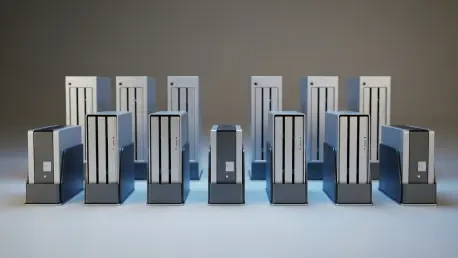
Redundancy is your absolute best ally when you move away from the cloud, which is why I tell everyone to maintain at least two separate physical drives. You should keep one drive connected at your desk for those automated daily Time Machine passes, while the second drive stays off-site, perhaps at your office or a trusted relative’s home, to protect against local disasters like fire or theft. Make it a point to swap these drives every month so they both stay updated and the hardware remains active. You also need to treat the hardware with care by using anti-static sleeves and cushioned cases, and avoid storing them in humid or hot environments that can degrade the components. Finally, remember that all hardware has a shelf life; even if a drive seems perfectly healthy, you should proactively replace your active backup units every three to five years to stay ahead of inevitable mechanical or electronic failure.
What is your forecast for the future of local data ownership versus the increasing push toward mandatory cloud integration?
I believe we are heading toward a significant “ownership renaissance” where power users and privacy-conscious individuals will increasingly reject the subscription-based tether of the cloud. As local storage becomes denser and cheaper, the desire to have a physical, 1:1 copy of one’s digital life—free from the prying eyes of large corporations and the recurring monthly fees—will move from a niche hobby to a standard professional practice. While cloud services will continue to offer convenience for the average consumer, the enterprise-grade reliability and security found in a well-managed, local multi-drive system will remain the gold standard for anyone whose livelihood depends on their data. We will likely see more sophisticated local management tools that bridge the gap, offering the “invisible” feel of the cloud with the absolute control of a physical drive sitting right on your desk.