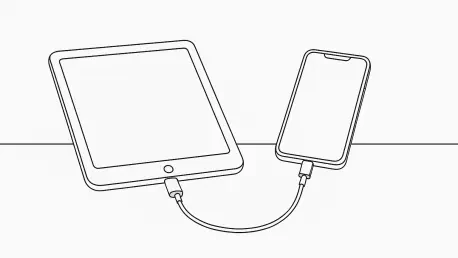

Repurposing an old Android tablet as a dedicated desktop dashboard allows users to monitor notifications and control media playback without the constant distraction of social media apps. In the digital landscape of 2026, the demand for high-focus environments has led many professionals to seek out minimalist interfaces that strip away the clutter of modern operating systems. Android Auto, traditionally confined to the vehicle, provides exactly this experience by surfacing only essential utilities like messaging, navigation, and music. By porting this interface to a standalone device at a desk, users can effectively bridge the gap between staying connected and staying productive. The system acts as a specialized terminal, preventing the habit of scrolling through feeds while still ensuring that critical alerts from family or colleagues are visible. This setup effectively transforms a standard tablet into a touch-enabled control center that enhances the workspace without adding the typical mental fatigue associated with standard multi-tasking.
1. Following the Physical Configuration Steps:
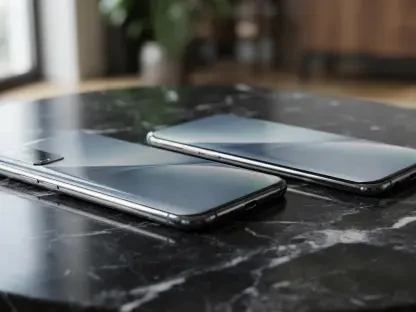
Setting up this environment begins with the selection of appropriate hardware, requiring two separate Android devices to create the functional link. One device serves as the transmitter—typically the primary smartphone containing all user data and accounts—while the other functions as the receiver or the dedicated display. For the display, an older tablet or a secondary phone that might otherwise be relegated to a drawer is an ideal candidate for this project. Once the hardware is ready, the next step involves securing a compatible software bridge from a reputable source. Applications like Open Headunit or Headunit Reloaded are specifically designed to emulate the automotive head unit environment on standard Android hardware. These tools are available through standard app repositories and provide the necessary protocols to communicate with the Android Auto service. Selecting the right app depends on the specific version of the operating system the display device is running, but both options offer robust support for modern standards as of 2026.
After the software is installed on the display device, establishing a physical connection is the most reliable method for ensuring a stable low-latency stream between the gadgets. This is achieved using a USB On-The-Go (OTG) cable, which allows the display device to act as a host for the primary smartphone. Upon plugging the devices together, the primary phone will typically trigger a series of system prompts requesting authorization for data transfer and Android Auto access. It is crucial to grant these permissions immediately to allow the handshake between the two systems to complete successfully without errors. Once the link is established, launching the chosen application on the display device will reveal a menu of various connection types. Selecting the USB option will prompt the software to search for the attached smartphone. Once identified, the Android Auto interface will project onto the tablet screen, providing a familiar layout that is optimized for glanceable information and quick interactions throughout the productive workday.
2. Exploring Wireless and Self-Hosting Alternatives:
For users who prefer a cleaner workspace without the clutter of physical cables, wireless connection strategies offer a viable alternative to the USB OTG method. Modern wireless protocols in 2026 have significantly improved the stability of these links, making them more practical for daily desktop use than in previous years. One popular approach involves using Wi-Fi P2P (Peer-to-Peer), which allows the transmitter and receiver to communicate directly without a traditional router. Alternatively, specialized companion applications like Wireless Helper or Wi-Fi Launcher can facilitate the connection over a local network. These tools essentially trick the devices into recognizing a car-like environment over the air. Some users even opt for dedicated wireless Android Auto dongles, which can be adapted for desktop use to provide a seamless, plug-and-play experience. While wireless setups offer more freedom in device placement, they do require a strong signal to maintain high-resolution visuals and responsive touch inputs.
In scenarios where a second device is not available, it is possible to run the entire Android Auto interface on a single piece of hardware through a process known as self-hosting. This involves utilizing the built-in Android Auto developer server, a feature hidden within the settings of the mobile app itself. By activating this server, the device acts as both the source and the display, broadcasting the interface to a local port that the receiver app then captures. This method is particularly efficient for users with modern, high-performance tablets that can handle the overhead of running both the background services and the visual emulator simultaneously. However, because this approach is more resource-intensive, older hardware might struggle with frame rate drops or thermal throttling over long periods of use. For the best results on a single device, it is recommended to clear background tasks and ensure the tablet is connected to a power source, as the emulation process can drain the battery faster than standard apps.
3. Leveraging Practical Benefits and Smart Integration:
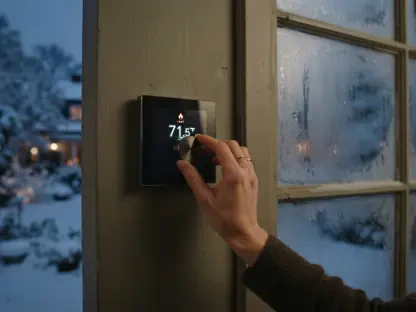
The practical advantages of maintaining an Android Auto dashboard at a desk extend beyond mere notification management. One of the most effective features is the integration of voice-controlled assistants, which allows users to have text messages and emails read aloud while their hands remain busy with keyboard tasks or manual projects. This auditory feedback loop keeps the user informed without requiring them to break visual focus from their primary work. Furthermore, the interface provides streamlined access to smart home controls via Google Home, enabling quick adjustments to lighting, temperature, or security settings from the same screen. In a kitchen environment, this setup serves as a hands-free recipe assistant and media controller, resistant to the usual distractions of a full tablet interface. The simplified layout ensures that buttons for pausing music or skipping podcast segments are large and easy to hit, reducing the cognitive load required to manage background media while concentrating.
From a sustainability perspective, transforming older electronics into dedicated dashboards is an excellent way to extend the lifecycle of hardware that no longer meets the demands of modern mobile gaming or professional apps. Because the receiver application primarily acts as a display for the data processed by the primary phone, the actual processing power of the tablet becomes less critical. This hardware-agnostic nature means a device from several years ago can still provide a fluid and responsive experience when paired with a contemporary smartphone. This approach naturally leads to a more organized digital ecosystem where each device has a specific, focused purpose rather than several devices competing for the user’s attention with redundant notifications. By isolating communication and media to the Android Auto screen, the user creates a physical boundary between leisure apps and productivity tools. This separation of concerns was a powerful strategy for maintaining mental clarity as the technological landscape evolved.
4. Finalizing the Distraction-Free Workspace Strategy:
The successful implementation of a desktop Android Auto setup offered a clear path toward reclaiming focus in a hyper-connected world. By repurposing existing hardware, individuals moved toward a more intentional relationship with their devices, favoring specialized utility over generalized distraction. The process demonstrated that even as technology advanced into 2026, the most effective solutions often involved simplifying rather than complicating the user experience. Those who adopted this configuration found that it significantly reduced the frequency of phone checks throughout the day. Moving forward, the strategy for digital wellness involved setting up these secondary displays as permanent fixtures in home offices and creative studios. The project provided an actionable way to utilize older silicon, proving that discarded tablets still possessed significant value as high-tech tools. Ultimately, the transition to a dedicated dashboard environment represented a shift toward a more focused and controlled professional lifestyle.