
Nia Christair stands at the forefront of the battle against digital extortion, bringing a wealth of expertise from the worlds of mobile gaming, hardware design, and enterprise-level security solutions. As ransomware evolves from simple file locking to sophisticated data exfiltration operations that threaten the very core of corporate identity, her deep understanding of the Windows ecosystem offers a vital shield for users. This conversation dives into the practical mechanics of the anti-ransomware tools built into Windows 10 and 11, the often-overlooked importance of file versioning in backup strategies, and the legacy vulnerabilities like the SMB1 protocol that continue to pose a silent threat to modern networks. We explore how a combination of rigorous patching, macro management, and proactive folder protection can transform a vulnerable PC into a hardened fortress against the likes of MedusaLocker and DarkSide.
Ransomware has shifted from a nuisance to a global crisis with names like WannaCry and Conti becoming synonymous with digital disaster; how has the fundamental nature of these attacks changed the way you view basic PC security?
The landscape has undergone a terrifying transformation over the last decade, moving from localized encryption to high-stakes corporate espionage. In the early days, we saw tools like CryptoLocker that simply locked your hard disk and demanded Bitcoin, but today, gangs like Qilin and MedusaLocker are far more stealthy and patient. They infiltrate enterprise systems and sit there for weeks, quietly collecting sensitive data before they ever trigger the encryption phase, which gives them double the leverage to demand payment. It creates a visceral sense of dread for a user to realize their personal history or a company’s intellectual property is being held for ransom on a global stage. This is why I stress that security is no longer just about stopping a virus; it is about protecting the integrity of every single file you own from the moment it is created.
Microsoft introduced a feature called “Controlled folder access” to help combat these threats, but it remains buried in the settings and disabled by default—what is the reality of navigating those menus to actually get this protection running?
It is a bit of a journey through the interface, but the peace of mind it provides is worth every click of the mouse. To get started in Windows 11, you have to navigate through Start to Settings, then dive into Privacy & Security before finding the Windows Security hub. For those still on Windows 10, the path is slightly different, going through Update & Security, but the destination is the same: the Virus & Threat Protection screen. Once you find the “Manage ransomware protection” link and toggle that switch to “On,” you feel a certain sense of relief as the system prompts you for permission to lock down your directories. However, the work isn’t done just because the switch is flipped; the system defaults to protecting core areas like Desktop, Documents, Music, Pictures, and Videos, but anything outside those system folders is still technically “fair game” until you manually add it.
When a user decides to customize this protection, how do they ensure their legitimate programs don’t get locked out while trying to keep the malware at bay?
This is where the balancing act between security and usability really happens, and it requires a hands-on approach to whitelisting. Microsoft does the heavy lifting by automatically allowing its own Office apps, but they haven’t published a comprehensive list of every “safe” app, so you will likely need to manually add your trusted third-party software. You have to go into the “Allow an app through Controlled folder access” setting, click through the prompts, and then navigate the file explorer to find the specific executable file, usually tucked away in the Program Files or Program Files (x86) folders. It can feel a bit technical for the average person to hunt down an .exe file, but it’s a necessary step to ensure your creative or professional tools can still save your work. If you ever change your mind or realize an app is behaving strangely, the “Remove” button is right there in the same menu, allowing you to revoke those permissions instantly.
Backing up data is the oldest advice in the book, yet ransomware continues to succeed; why is the concept of “versioning” more important than just having a secondary copy of your files?
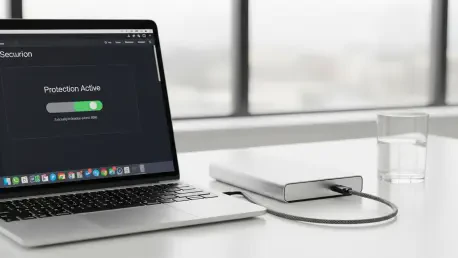
The tragedy of a standard backup is that if your computer gets hit by ransomware, any drive physically attached to the PC—like a local USB backup—will likely be encrypted right along with your main drive. This is where versioning becomes the hero of the story because it doesn’t just keep the most recent copy; it keeps a chronological history of that file. Services like OneDrive, Google Drive, Carbonite, and Dropbox allow you to look back in time to a version of the file that existed before the infection took hold. Some of these modern cloud services even feature active ransomware detection that flags suspicious, mass-encryption activity and notifies you immediately. It turns a potential catastrophe into a recovery task, where you simply remove the infected files and restore the clean, older versions with a few clicks.
Patching a system is often viewed as a chore that interrupts productivity, but in the context of a new ransomware outbreak, what does that race against time look like for the average user?
When a new wave of malware starts washing across the globe, waiting for Windows Update to run on its own schedule is a luxury you simply cannot afford. You need to be proactive, heading into Settings and manually hitting that “Check for updates” button for Windows 10 or 11 to grab the latest security definitions for Windows Security. It isn’t just about the OS itself; you have to consider the anti-malware definitions that are updated constantly to recognize the digital signatures of new threats. I often recommend that people who are comfortable with a command line use the WinGet command to keep all their third-party apps updated simultaneously. Keeping your software at the latest version—like ensuring you are on Windows 11 25H2 or Windows 10 22H2—is the most effective way to close the doors that attackers use to sneak into your system.
Macros in Microsoft Office have long been a favorite delivery method for ransomware; how can an office environment stay productive while effectively shutting down this vulnerability?
The reality is that macros are incredibly powerful for automation, but that same power makes them a “ticking time bomb” when they are used to spread malicious code via email attachments. Microsoft has started disabling macros from the internet by default, but you should still go into the Trust Center Settings within your Office apps to verify your stance. I always suggest selecting “Disable all macros with notification,” which acts as a digital speed bump that forces you to pause and think before enabling any active content. You only ever click that “Enable” button if you are 100% certain the file is from a trusted, verified source and was expected as part of your workflow. It’s about creating a culture of skepticism where every “Enable Content” prompt is treated with the same caution as a physical door-to-door solicitor.
For IT administrators managing an entire fleet of computers, what are the legacy “ghosts in the machine” that still keep the network vulnerable despite modern updates?
One of the biggest lingering threats is the 30-year-old SMB1 networking protocol, which is notoriously insecure and has been the primary vehicle for some of the most devastating ransomware spreads in history. Even though Microsoft officially did away with it starting with Windows 10 version 1709, many systems that were upgraded from older versions still have it lurking in the background. IT admins must be diligent in using the Group Policy Management Console or PowerShell to ensure SMB1 is fully deactivated across all devices while keeping SMB2 and SMB3 active for legitimate traffic. There is also the challenge of implementing Controlled Folder Access at scale; Microsoft recommends using “Audit Mode” first to see which legitimate apps might be blocked before you fully enforce the lockdown. This data-driven approach allows an organization to harden its defenses without accidentally bringing the entire company’s workflow to a grinding halt.
What is your forecast for the future of ransomware tactics?
I believe we are entering an era of “triple extortion” where attackers won’t just encrypt your files and threaten to leak them, but will also actively target your customers or stakeholders with the stolen data to create maximum social pressure. We will see more refined AI-driven phishing attempts that make it nearly impossible to distinguish a fake email from a real one, meaning our technical defenses like Controlled Folder Access will become even more vital than our human judgment. The battle will move further into the cloud, where attackers will try to bypass local OS security entirely by targeting the synchronization tokens of our storage services. To stay ahead, we must move toward a “Zero Trust” mindset where every application, no matter how familiar, has to prove its legitimacy every time it tries to touch our most precious data.