
The fastest way to capture a screen on iPhone 17 remains the hardware shortcut involving the side button and the volume up button pressed simultaneously. In a digital landscape where information is shared at the speed of thought, the ability to instantly preserve a visual record of an application, a critical document, or a fleeting social moment is an essential skill for every user. The iPhone 17 lineup, which includes the standard model, the Pro, the Pro Max, and the exceptionally thin Air model, continues to refine this interaction within the iOS 26 environment. While the fundamental process has remained consistent for several generations, the precision required for the latest hardware can occasionally lead to user frustration. Understanding the subtle nuances of button timing and the expanded software capabilities is vital for maximizing productivity. This article explores the various methodologies available to users in 2026, ensuring that screen capture remains a seamless part of the mobile experience regardless of the specific model or user preference being utilized.
1. Mastering the Hardware Shortcut and Button Coordination
To successfully execute a screenshot using the physical interface, the user must press the side button and the volume up button at the exact same moment. This action should be a quick click rather than a prolonged press; holding the buttons for more than a second may inadvertently trigger the emergency SOS sequence or the power-off slider. Upon a successful capture, the display will momentarily flash, and a small preview thumbnail will manifest in the bottom-left corner of the screen. This thumbnail provides immediate access to the markup tools, allowing for annotations, cropping, or direct sharing to other platforms. This method is the standardized approach for all Face ID devices, providing a familiar tactile experience for long-time users. It remains the most reliable way to grab a quick image during high-stakes activities like mobile gaming or live video streaming where software menus might be too slow to access.
If the screenshot attempt fails, the issue is almost always a matter of synchronization or physical grip. Many users mistakenly press the side button slightly before the volume button, which results in the device simply locking the screen. To prevent this, it is recommended to hold the iPhone 17 firmly with one hand while using the thumb and index finger to apply even pressure to both sides of the chassis. For those using protective cases, the extra layer of material can sometimes require a more deliberate and forceful press to register the hardware click. If the mechanical buttons are difficult to coordinate due to hand size or physical limitations, iOS 26 provides several alternative triggers within the accessibility menu. These options ensure that the ability to capture information is never restricted by the physical design of the device, allowing for a more inclusive and adaptable user experience across the entire 2026 smartphone lineup.
2. Utilizing Full Page Captures and Virtual Accessibility Tools
The iPhone 17 offers advanced capabilities for capturing more than just what is currently visible on the display, which is particularly useful for web browsing and document review. After taking a standard screenshot, a user can tap the thumbnail to open the editor and select the Full Page option located at the top of the interface. This feature generates a continuous capture of an entire webpage or a multi-page PDF, which can then be navigated using a vertical slider on the right side of the editor. This is an invaluable tool for archiving long-form articles or technical specifications that span multiple screen heights. Users can then use the crop tool to isolate the specific data they need before saving the result. It is important to remember that these extended captures are typically stored as PDF files in the Files app, rather than as standard images in the Photos gallery, ensuring that the document remains searchable.
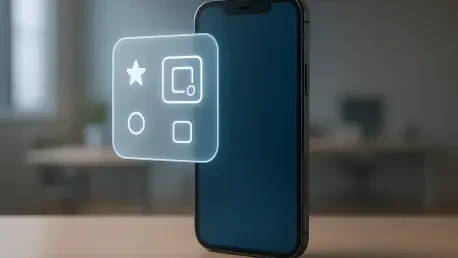
For a hands-free or button-free experience, the AssistiveTouch feature provides a virtual overlay that can trigger a screenshot with a single tap. This tool is enabled through the accessibility settings, where it creates a floating gray button that remains accessible across all applications and menus. By navigating to the Customize Top Level Menu section, users can add the screenshot icon to the AssistiveTouch interface for rapid deployment. This method is highly effective for those who use their iPhone 17 in a mounted position or for users who find the two-button hardware shortcut difficult to manage during one-handed operation. The floating button can be dragged to any corner of the screen to stay out of the way of important content, and its idle opacity can be adjusted to make it nearly invisible. This digital alternative represents the continued commitment of iOS 26 to provide flexible navigation and utility options for a diverse global user base.
3. Configuring Advanced Gestures and System Preferences
The Back Tap feature introduced a sophisticated gesture-based method for capturing the screen by simply tapping the rear glass of the iPhone 17. Located within the touch settings of the accessibility menu, this function allows users to assign the screenshot command to either a double-tap or a triple-tap on the back of the device. This is particularly useful for capturing content discretely or when the front of the device is obscured. Despite the high sensitivity of the sensors in 2026, the triple-tap option is often preferred to prevent accidental captures during normal handling. Furthermore, the integration of Siri allows for entirely hands-free operation; simply saying “Siri, take a screenshot” will trigger the capture instantly. This vocal interface is powered by on-device processing in iOS 26, ensuring that the command is executed with zero lag, which is essential when trying to capture a specific frame of a moving video or a rapidly changing data feed.
In conclusion, the various methodologies for capturing the display on the iPhone 17 under iOS 26 provided users with unprecedented flexibility. From the traditional hardware shortcuts to the integration of the Action Button and voice commands, the ecosystem supported a wide array of professional and personal workflows. Those who navigated the complexities of CarPlay and Mac mirroring found that screen capture remained a consistent tool for cross-platform documentation and remote collaboration. For individuals working in restricted corporate environments, the role of administrative oversight became a factor in determining feature availability, ensuring that security protocols remained intact across managed devices. Ultimately, the transition to these advanced capture techniques empowered users to preserve digital information with greater efficiency than in previous years. These developments established a new baseline for mobile productivity, reflecting the continued evolution of the user interface. By adopting these strategies, professionals successfully managed their visual data with precision and speed, marking a significant advancement in mobile record-keeping.