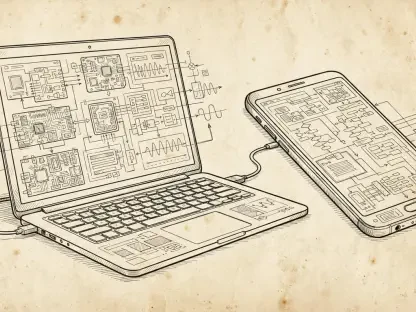

When it comes to mobile matters, Nia Christair is a leading expert with a career spanning mobile gaming, app development, device hardware design, and enterprise solutions. In this discussion, she breaks down the current state of cross-platform productivity, specifically focusing on the “mishmash of workarounds” users must navigate to sync clipboards between Android devices and computers. We explore everything from keyboard-integrated solutions and native sharing protocols to the future of the Android-PC relationship.
For users seeking immediate, automatic clipboard synchronization on Windows, specialized keyboards like SwiftKey offer a native link. What specific productivity gains do you see with this “keyboard-first” approach, and what factors should a person consider before switching their primary input method just for the sake of sync features?
The most significant gain is the removal of cognitive friction; when a system works instantly and automatically, your two work surfaces essentially merge into one harmoniously shared clipboard. You can copy a complex URL or a snippet of code on your phone and hit Ctrl-V on your PC a second later without ever touching a “share” button. However, the commitment is high because you have to use SwiftKey as your primary Android text input method to bridge that gap. Before switching, a user needs to evaluate if they are comfortable leaving behind Gboard or their preferred layout, because while the “clipboard sorcery” is powerful, the tactile experience of typing is something you interact with thousands of times a day.
Quick Share serves as a manual bridge for moving text between Android devices and Windows or ChromeOS desktops. How does this manual “share” workflow change a user’s approach to data privacy compared to automatic syncing, and what are the specific steps to ensure devices remain visible to one another?
Manual sharing offers a distinct privacy advantage because it ensures that not every single thing you copy—like a sensitive password or a private note—is automatically beamed across the airwaves to other devices. You are making a conscious choice for every transfer, which prevents your clipboard history from living on multiple machines without your explicit consent. To keep this running smoothly, you have to verify visibility settings: on Android, you search for “Quick Share” in system settings; on Windows, you must have the official Google app open; and on ChromeOS, you toggle the tile in the lower-right clock menu. Once these are set to be visible to your “nearby devices,” you simply highlight text, hit “Share,” and select your computer from the list to trigger that split-second notification.
Ecosystem barriers often make clipboard sharing difficult between Android and macOS. Since the “Send to devices” feature within a mobile browser can bypass some of these hurdles, what is the most efficient way to manage this process, and how does it compare to using a dedicated file-sharing app?
Using Chrome’s “Send to devices” is a total hidden gem because it bypasses the walled garden Apple builds around its hardware, requiring only that you are signed into the same Google account on both ends. The most efficient way to handle this is to highlight text directly within the Android Chrome app, select “Share,” and then look for that specific command to see a list of your recent active desktops. It is much faster than a dedicated file-sharing app because it places the text directly onto the target system’s clipboard for immediate pasting. You don’t have to deal with opening a third-party app, uploading a file, and then downloading it on the other side; it is a direct “browser beam” that saves at least three or four extra steps.
Sometimes the data we need is trapped inside an image or a restricted interface, requiring optical character recognition tools like Google Lens to extract and sync it. Could you walk through the process of moving that “hidden” text to a computer clipboard and explain when this method is superior to a standard screenshot?
This method is superior when you need to interact with the text—like a tracking number in a photo or a restricted UI element—rather than just looking at it. First, you share your image or screenshot to the Google Lens app, then you press and hold to highlight the “hidden” text within the image. From there, you tap the three-dot menu and select the “Copy to computer” command, which allows you to pick any machine running Chrome where you are signed in. It transforms a static image into a live data bridge, allowing you to paste that text directly into a document on your PC without manual transcription, which is a massive win for accuracy.
Since platform developers occasionally remove built-in synchronization features, users are often left with a patchwork of workarounds. How can a professional build a reliable, long-term workflow that doesn’t rely on a single experimental feature, and what are the signs that a specific tool might soon be phased out?
A professional should maintain a “toolkit” approach rather than relying on one single “flip of a switch,” much like the native Chrome sync feature Google killed off years ago. The best sign that a tool is on the chopping block is when it becomes buried in menus or hasn’t seen a UI update in over a year, signaling that the company has moved on to a newer, shinier project. To stay resilient, I recommend mastering at least two methods, such as keeping the Quick Share app installed on your PC while also knowing how to use the Chrome “Send to devices” trick. By having these secondary paths ready, you won’t be left stranded when a developer decides to deprecate a specific “experimental” integration.
What is your forecast for Android-to-PC integration?
I expect we will see a much tighter, more unified experience as Google pushes its “merger” plans for Android and ChromeOS. We are already seeing the groundwork being laid with more robust sharing menus and the expansion of Quick Share to Windows, which suggests they want to move away from the current “mishmash” of options toward something more seamless. My hope is that they finally re-implement a native, system-wide clipboard sync that doesn’t require a specific keyboard or a manual sharing action. The goal for the next two or three years is to make the transition between your phone and your computer feel like moving between two rooms in the same house, rather than jumping between two different islands.