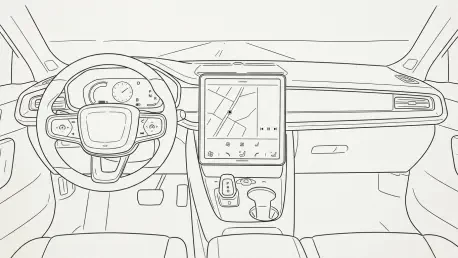

The ability to mirror a smartphone wallpaper on the infotainment system provides a simple way to replace the standard background with a more visually appealing and personal touch. While many users accept the default configuration as an immutable interface, modern Android Auto implementations offer a surprisingly deep level of customization designed to reduce driver distraction and enhance ergonomics. The core objective of these adjustments is to minimize the cognitive load required to operate the system while the vehicle is in motion. By strategically placing the most essential navigation and communication tools within the driver’s primary line of sight, the interface transforms from a generic software mirror into a purpose-built driving assistant. This evolution in user interface design reflects a broader shift toward driver-centric technology where the software adapts to human behavior rather than forcing the user to conform to rigid templates. Optimizing these settings ensures that every interaction remains fluid and safe.
1. How to Personalize the App Launcher
Accessing the deep customization menus requires a few steps on the connected smartphone, as the handheld device serves as the primary processing hub for the infotainment experience. To begin the optimization process, one must navigate to the smartphone’s primary Settings menu and select the Connected Devices category. Within this section, the Android Auto submenu hosts all the relevant toggles and configuration tools needed to reshape the interface. For those who prefer a more direct route, utilizing the system search bar by typing “Android Auto” provides immediate access to these core settings without manual navigation through various folders. Once inside the main dashboard of the application, selecting the ‘Customize launcher’ option opens the gateway to rearranging the digital environment. This specific menu allows for the total reorganization of how various applications are presented on the car’s physical display, ensuring that secondary tools do not clutter the primary view.
Effective management of the app drawer involves selecting which specific applications remain visible and which are hidden to streamline the user experience. By interacting with the list of installed software, users can choose to remove cluttering icons like weather or calendar if those features are not frequently used while driving. Furthermore, the interface allows for the dynamic reordering of app names; by pressing and pulling these entries, one can prioritize essential tools like navigation or music players at the very top of the list. Beyond simple app placement, the launcher configuration menu offers the ability to create personalized shortcuts that execute complex tasks with a single tap. These shortcuts can be programmed to dial a specific contact or trigger a Google Assistant routine, such as providing a situational briefing or sending a pre-written text message. This level of granular control effectively minimizes the time a driver spends looking at the screen, promoting a safer environment.
2. How to Adjust the Screen Layout and Visuals
Modifying the physical orientation of information on the dashboard is crucial for different vehicle cabin designs and driver preferences. Within the settings, locating the ‘Change layout’ option allows the user to decide whether the navigation map or the media playback controls should be positioned closer to the driver’s side of the vehicle. This adjustment is particularly beneficial for right-hand or left-hand drive configurations, as it places the most critical visual data within the most comfortable viewing angle. In addition to structural changes, the visual aesthetic can be harmonized by syncing the background image directly from the mobile device. From the car’s touchscreen interface, opening the Android Auto settings and enabling the ‘Use Phone’s Wallpaper’ toggle creates a cohesive visual bridge between the smartphone and the vehicle’s infotainment system. This minor yet impactful change helps the technology feel like an integrated extension of personal hardware rather than a separate tool.
Managing how the system responds to environmental lighting and initial connection sequences further refines the daily commute. By visiting the Maps section within the internal settings, drivers have the option to manually lock the display into either day mode or night mode depending on their visual sensitivity. While the automatic toggle is efficient for most, manual control ensures the screen remains legible under specific glare conditions or within dark tunnels without flickering. Additionally, controlling the automatic playback of media is a vital setting for those who prefer a quiet start to their journey. Navigating to the Startup section allows for the deactivation of the ‘Start media automatically’ feature, preventing music or podcasts from blaring through the speakers the moment the phone is plugged in. This ensures the driver maintains full control over the auditory environment from the second the engine starts, allowing for a more deliberate and calm transition into the driving experience.
Strategic Refinement for Future Driving
The process of refining the Android Auto interface demonstrated how minor software adjustments resulted in a significantly more focused driving environment. Drivers who took the time to calibrate their launcher and visual settings discovered a system that anticipated their needs rather than presenting unnecessary obstacles. Moving forward, the focus shifted toward maintaining this digital hygiene by periodically reviewing app permissions and shortcut efficiency as new software updates arrived. The implementation of personalized routines and layout preferences proved to be a foundational step in mastering in-car technology. It became clear that the most effective digital cockpits were those that balanced aesthetic appeal with practical utility. These early configurations established a standard for user safety, proving that a customized screen is not merely a luxury but a functional requirement for the modern road. Such meticulous attention to detail ensured that every journey was optimized for maximum productivity.
Looking ahead, the logical progression involved integrating these tailored settings with emerging automotive technologies to create a seamless ecosystem. Actionable steps included exploring third-party integrations that offered more granular control over vehicle telemetry and diagnostic data directly through the modified interface. The transition toward a fully personalized digital experience necessitated a proactive approach to software management, where users regularly audited their app lists to ensure peak performance. It was observed that those who engaged deeply with these customization features were better prepared for future shifts in autonomous driving and augmented reality navigation. Ultimately, the evolution of the dashboard interface reflected a commitment to user-centric design that prioritized the safety and comfort of the driver above all else. By continuing to adapt and refine these digital tools, drivers maintained a competitive edge in navigating an increasingly complex technological landscape with total confidence and ease.